Welcome to the Jitsi Meet Developer Guide! This guide is designed to assist you in integrating Jitsi Meet into your AWS environment through detailed, step-by-step instructions.
Self hosted Jitsi meet setup for video conferencing using the best open source platform powered by meetrix.io. The perfect alternative to costly solutions such as Zoom, Microsoft Teams and Google meet.
Prerequisites
Before you get started with the Jitsi Meet AMI, ensure you have the following prerequisites:
- Basic knowledge of AWS services, including EC2 instances and CloudFormation.
- An active AWS account with appropriate permissions.
- Enough vCPU limit to create ec2 instances
- (Follow https://meetrix.io/articles/how-to-increase-aws-quota/ blog to ensure this)
Launching the AMI
Step 1: Find and Select AMI
Log in to your AWS Management Console.
Follow the provided links to access the Jitsi Meet product you wish to set up
(If you want to install jitsi meet without recording:Jibri, please follow the following guide: https://meetrix.io/articles/setup-jitsi-meet-developer-guide)
- Jitsi Meet 100 concurrent user video conferencing setup with recording
- Jitsi Meet 250 concurrent user video conferencing setup with recording
- Jitsi Meet rent user video conferencing setup with recording
Step 2: Initial Setup & Configuration
- Click the "Continue to Subscribe" button.
- After subscribing, you will need to accept the terms and conditions. Click on "Accept Terms" to proceed.
- Please wait for a few minutes while the processing takes place. Once it's completed, click on "Continue to Configuration".
- Select the "video conferencing setup with recording " as the fulfilment option and choose your preferred region on the "Configure this software" page. Afterward, click the "Continue to Launch" button.
- From the "Choose Action" dropdown menu in "Launch this software" page, select "Launch CloudFormation" and click "Launch" button.
Create CloudFormation Stack
Step1: Create stack
- Ensure the "Template is ready" radio button is selected under "Prepare template".
- Click "Next".
Step2: Specify stack options
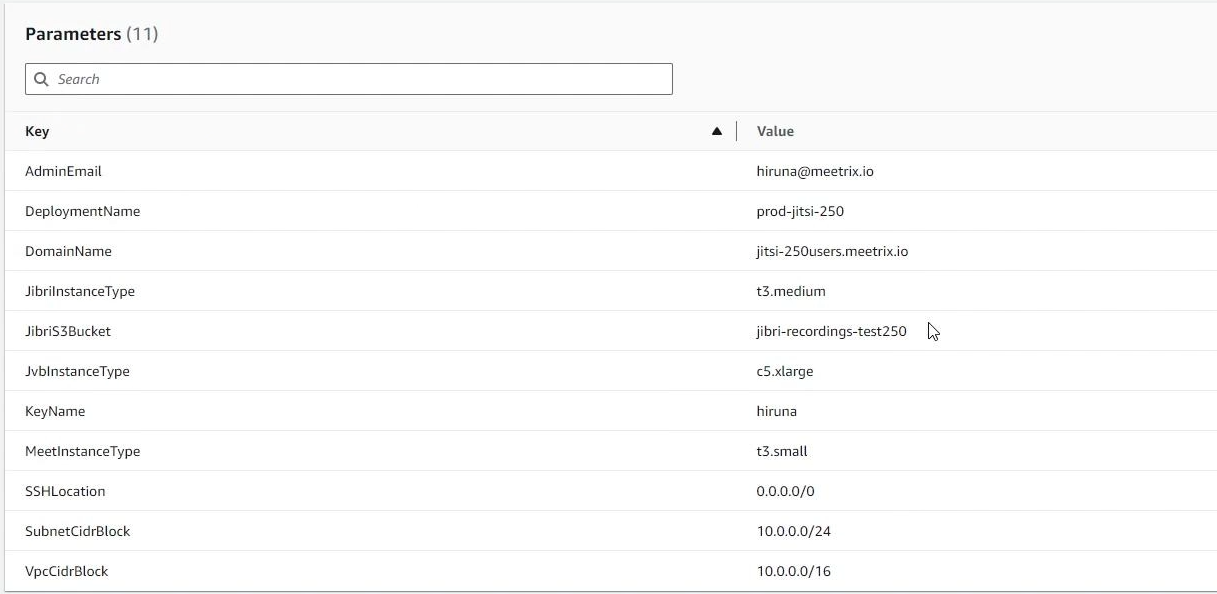
Provide the necessary parameters for your Jitsi deployment.
| Parameter | Description |
|---|---|
| Stack name | A unique name for your CloudFormation stack. |
| Admin Email | The email address for generating SSL certificates. |
| DeploymentName | A name for your deployment (e.g., jitsi-prod). |
| DomainName | Your public domain name (e.g., meet.yourcompany.com). Jitsi Meet will automatically try to setup SSL based on provided domain name, if that domain hosted on Route53. Please make sure your domain name hosted on route53. If its unsuccessful then you have to setup SSL manually. |
| JibriInstanceType | Choose an instance type for Jibri instance (Recommended: t3a.medium). |
| jibriS3Bucket | Choose an S3 bucket to store Jibri recordings. |
| JvbInstanceType | Choose an instance type for JVB instance (Recommended: c5.xlarge). |
| keyName | The name of your EC2 key pair for SSH access. |
| MeetInstanceType | Choose an instance type for Meet instance (Recommended: t3a.small). |
| SSHLocation | Set "SSHLocation" as "0.0.0.0/0". |
| SubnetCidrBlock | Keep "SubnetCidrBlock" as "10.0.0.0/24". |
| VpcCidrBlock | Keep "VpcCidrBlock" as "10.0.0.0/16". |
After filling in the details, click Next.
Step3: Configure stack options
- Choose "Roll back all stack resources" and "Delete all newly created resources" under the "Stack failure options" section.
- Click "Next".
Step4: Review
- Review and verify the details you've entered.
- Please make sure to create the s3 bucket. If you do t know how to create the s3 bucket, please follow our jitsi product guide video.
- Tick the box that says, "I acknowledge that AWS CloudFormation might create IAM resources with custom names".
- Click "Submit".

Afterward, you'll be directed to the CloudFormation stacks page.

Please wait for 5-10 minutes until the stack has been successfully created.

Update DNS
Step1: Copy IP Address
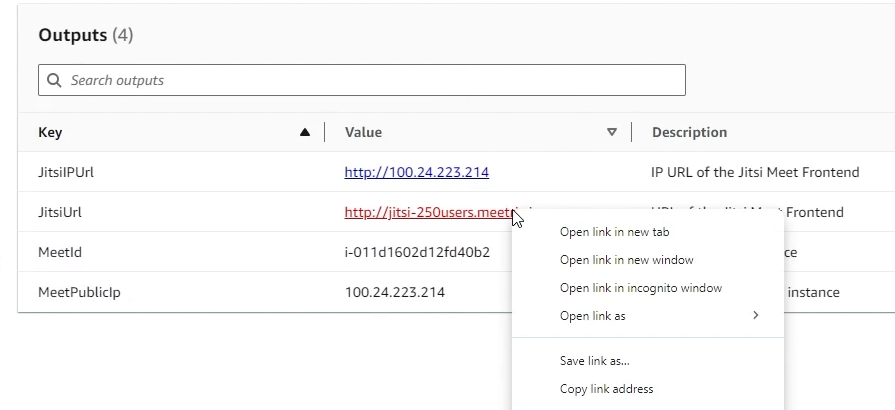
Copy the public Ip labeled "PublicIp" in the "Outputs" tab.

Step2: Update DNS
- Go to AWS Route 53 and navigate to "Hosted Zones".
- From there, select the correct hosted zone.
- Click "Create record" and enter the "Domain Name" and then paste the copied "PublicIp" into the "value" textbox.
- Click "Save".

Access Jitsi Meet
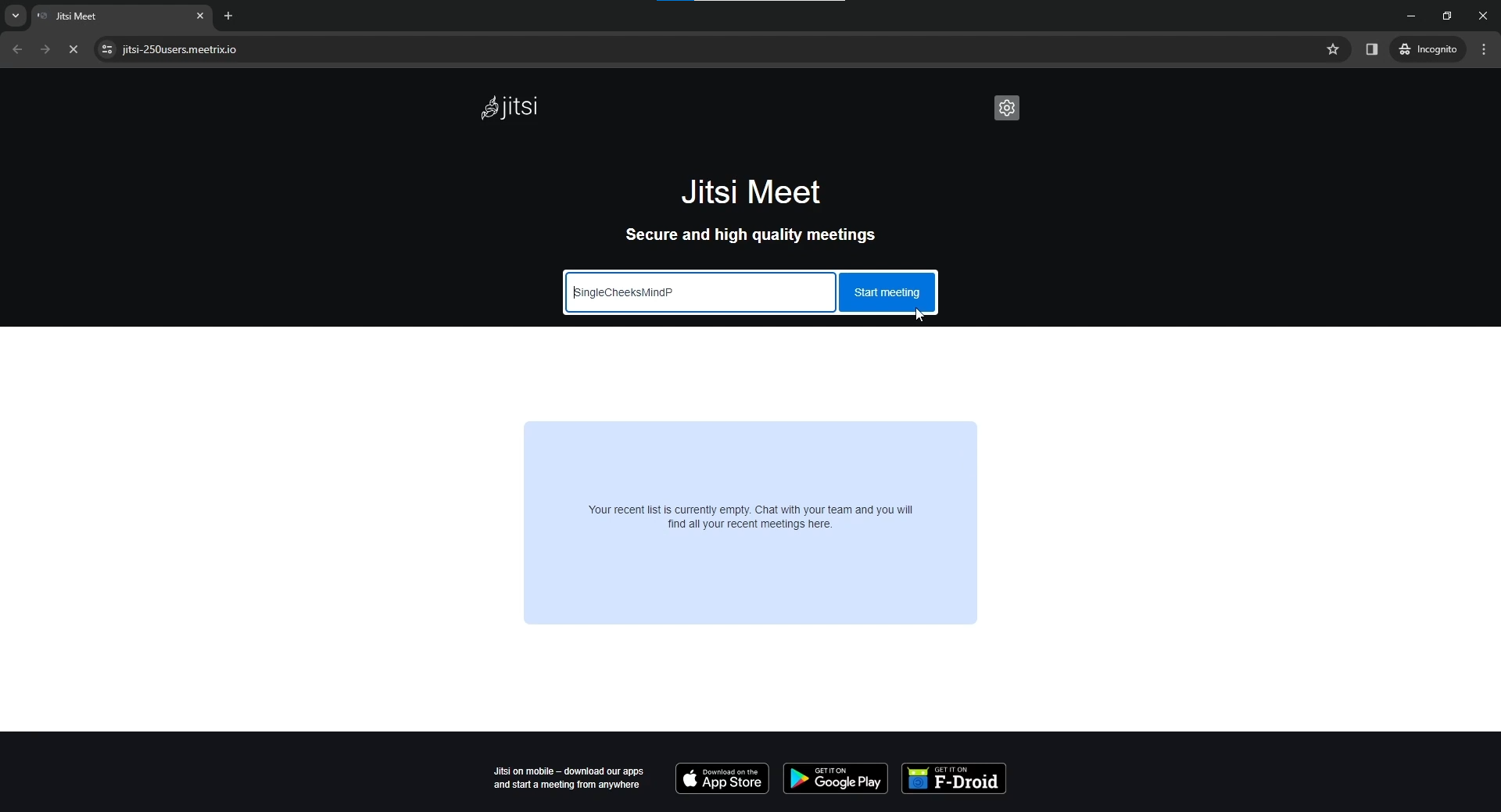
You can access the Jitsi Meet application through the "JitsiUrl" or 'JitsiIPUrl' provided in the "Outputs" tab.
502 Bad Gateway error
Start recording and Access
- After creating a meeting, go to toolbar and click on Start recording
- Click on Start Recording in the dialog box
- You will see the notification when the recording starts
- Stop the recording when you want to stop
- Go to AWS S3, search for the S3 bucket you added to store recording and access the bucket
- You will see the recorded video here. Click on the Name.
- You can view/download the recording here


Generate SSL Manually
Jitsi Meet will automatically try to setup SSL based on provided domain name, if that domain hosted on Route53. If its unsuccessful then you have to setup SSL manually.
Step1: Copy IP Address
- Proceed with the instructions outlined in the above "Update DNS" section, if you have not already done so.
- Copy the Public IP address indicated as "PublicIp" in the "Outputs" tab.

Step2: Log in to the server
- Open the terminal and go to the directory where your private key is located.
- Paste the following command into your terminal and press Enter:
- Type "yes" and press Enter. This will log you into the server.
ssh -i <your key name> ubuntu @<Public IP address>
Step3: Generate SSL
Paste the following command into your terminal and press Enter
sudo /root/certificate_generate_standalone.shIn case if it does not work properly, please run the following command and follow the instructions:
sudo certbot --nginxAdmin Email is needed to generate SSL certificates.
Shutting Down Jitsi Meet
There will be 4 instances deployed for the setup. One instances each for Jitsi Meet and Jibri. Two instances for JVB.
- Click the link in the "Physical ID" section in the "Resources" tab to access the EC2 instances, you will be directed to the Jitsi Meet instances in EC2. (To shut down the whole setup, you need to stop the 4 servers).
- In EC2 you will see 4 server as the below image
- Select a instance by marking the checkbox and clp instance" from the "Instance state" dropdown. You can restart the instance at your convenience by selecting "Start instance".


Remove Jitsi Meet
Delete the stack that has been created in the AWS Management Console under 'CloudFormation Stacks' by clicking the 'Delete' button.
Check Server Logs
Step1: Log in to the server (You have to log into all the servers separately in order to check logs of all the servers).
- Open the terminal and go to the directory where your private key is located.
- Paste the following command into your terminal and press Enter:
- Type "yes" and press Enter. This will log you into the server.
ssh -i <your key name> ubuntu @<Public IP address>
Step2: Check the logs
- To check logs of Jitsi Meet server use the following commands
- To check logs of Jibri server use the following command
- To check logs of JVB servers use the following command
sudo tail -f /var/log/jitsi/jicofo.log
sudo tail -f /var/log/prosody/prosody.log
sudo tail -f /var/log/prosody/prosody.err
sudo tail -f /var/log/nginx/access.log
sudo tail -f /var/log/nginx/error.log
sudo tail -f /var/log/syslogsudo tail -f /var/log/jitsi/jibri/log.0.txtsudo tail -f /var/log/jitsi/jvb.logUpgrades
When there is an upgrade, we will update the product with a newer version. You can check the product version in AWS Marketplace. If a newer version is available, you can remove the previous version and launch the product again using the newer version. Remember to backup the necessary server data before removing.
Troubleshoot
- If you face the following error, please follow https://meetrix.io/articles/how-to-increase-aws-quota/ blog to increase vCPU quota.
- If you face the following error (do not have sufficient <instance_type> capacity...) while creating the stack, try changing the region or try creating the stack at a later time.
- If you face the below error, when you try to access the API dashboard, please wait 5-10 minutes and then try.
- You can try checking the logs and resolvr own. If you need assistance, feel free to reach out to us. We are more than happy to help


Conclusion
The Guide is your comprehensive resource in the integration of Jitsi Meet into your AWS setup. Regardless of your level of experience as a developer, our guide offers comprehensive, sequential instructions to guarantee a smooth setup procedure. Whether you're hosting virtual meetings, conducting remote classes, or connecting with loved ones, Jitsi Meet empowers you to stay connected from anywhere in the world. Start hosting your own video conferences today with Jitsi Meet and experience the benefits firsthand!
Technical Support
Reach out to Meetrix Support (support@meetrix.io) for assistance with Jitsi Meet issues.
Frequently Asked Questions
What are the minimum instance requirements for Jitsi Meet with recordings?
For a setup supporting recordings, you'll need instances for Jitsi Meet components (like c5.xlarge for up to 100 users) and additional instances for Jibri (recording component), typically t3a.medium or larger depending on recording load.
Can I use my own domain name?
Yes. This guide walks you through configuring your own domain name and setting up SSL certificates for it.
How do I handle upgrades?
When a new version is available in the AWS Marketplace, you can launch the new version and migrate your data. Remember to backup your server data before removing the old version.
What should I do if I get a '502 Bad Gateway' error?
This error usually means the application is still starting up. Please wait about 5-10 minutes after deployment and then refresh the page.
How are recordings stored?
Recordings are stored in an Amazon S3 bucket that you specify during the CloudFormation stack creation.
Ready to Deploy Jitsi Meet with Recordings on AWS?
Get started in minutes with our pre-configured AMI and take control of your video conferencing with recording capabilities.
Deploy Jitsi Meet from AWS Marketplace