Welcome to the Rustdesk Developer Guide! This guide is designed to assist you in integrating our remote desktop client into your AWS environment through detailed, step-by-step instructions. Rustdesk is the ideal alternative for teamviewer and anydesk.
Related Article
How to Deploy RustDesk Remote Desktop AMI on AWS (Step-by-Step Tutorial)
Prerequisites
Before you begin, make sure you have the following:
- Basic knowledge of AWS services, including EC2 and CloudFormation.
- An active AWS account with the necessary permissions.
- Sufficient vCPU quota to launch new instances. If you need to increase it, follow this guide.
Launching the AMI
Step 1: Find and Select 'Rustdesk ' AMI
- Log in to your AWS Management Console.
- Navigate to the 'Rustdesk' in AWS Marketplace.
Step 2: Initial Setup & Configuration
- Click the "Continue to Subscribe" button.
- After subscribing, you will need to accept the terms and conditions. Click on "Accept Terms" to proceed.
- Please wait for a few minutes while the processing takes place. Once it's completed, click on "Continue to Configuration".
- Select the "CloudFormation script to deploy Rustdesk" as the fulfilment option and choose your preferred region on the "Configure this software" page. Afterward, click the "Continue to Launch" button.
- From the "Choose Action" dropdown menu in "Launch this software" page, select "Launch CloudFormation" and click "Launch" button.
Create CloudFormation Stack
Step1: Create stack
- Ensure the "Template is ready" radio button is selected under "Prepare template".
- Click "Next".
- Provide a unique "Stack name".
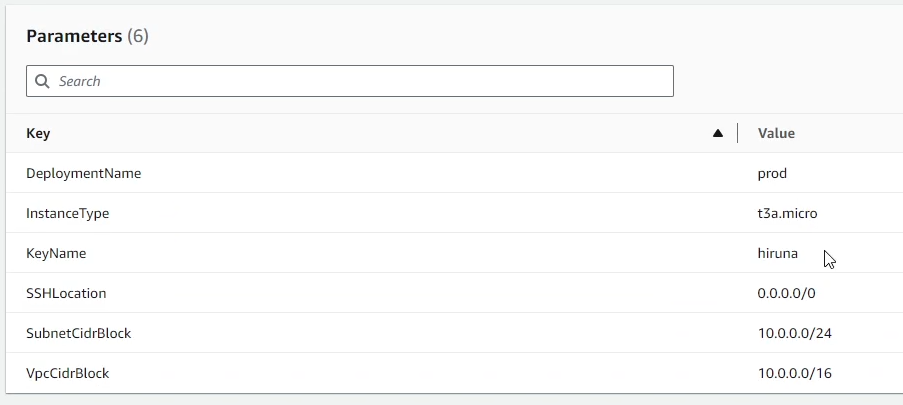
- For "DeploymentName", enter a name of your choice.
- Choose an instance type, "InstanceType" (Recommended: t3a.micro).
- Select your preferred "keyName".
- Set "SSHLocation" as "0.0.0.0/0".
- Keep "SubnetCidrBlock" as "10.0.0.0/24".
- Keep "VpcCidrBlock" as "10.0.0.0/16".
- Click "Next".
- Choose "Roll back all stack resources" and "Delete all newly created resources" under the "Stack failure options" section.
- click "Next".
- Review and verify the details you've entered.
- Tick the box that says, "I acknowledge that AWS CloudFormation might create IAM resources with custom names".
- Click "Submit".
Step2: Specify stack options
Step3: Configure stack options
Step4: Review

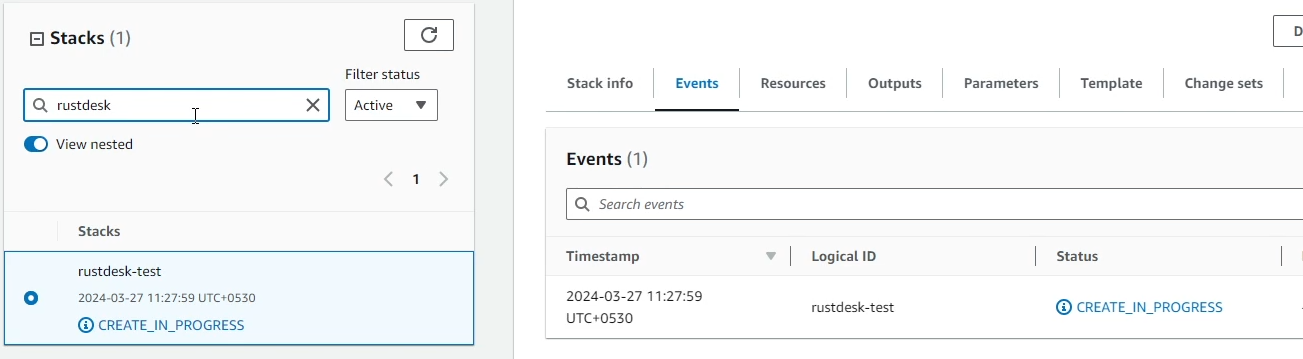
Afterward, you'll be directed to the CloudFormation stacks page.
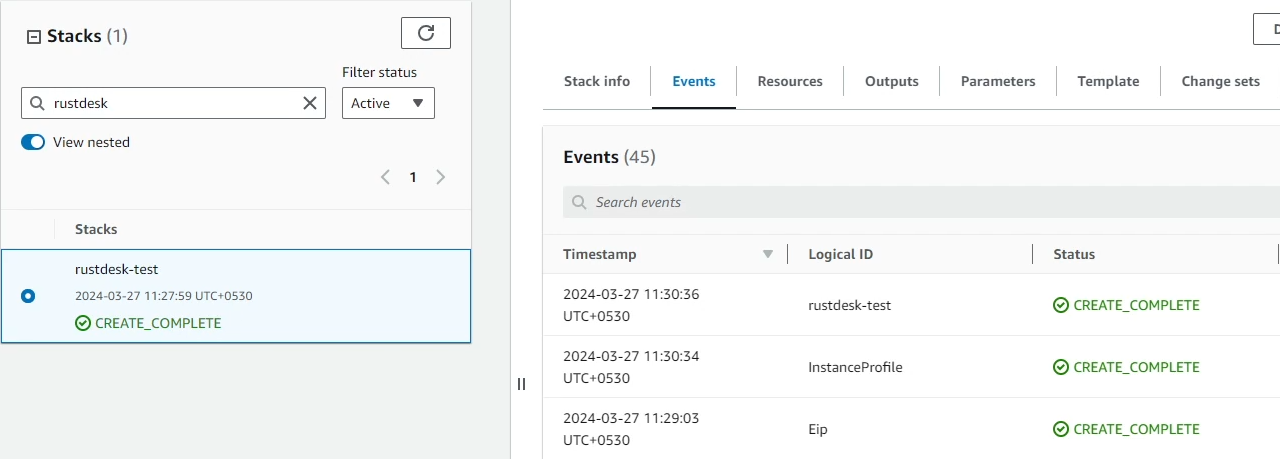
Please wait for 5-10 minutes until the stack has been successfully created.
Install & Run Rustdesk Application
Install
- Go to the rustdesk download page: version 1.4.1 (You may try the latest version at the time)
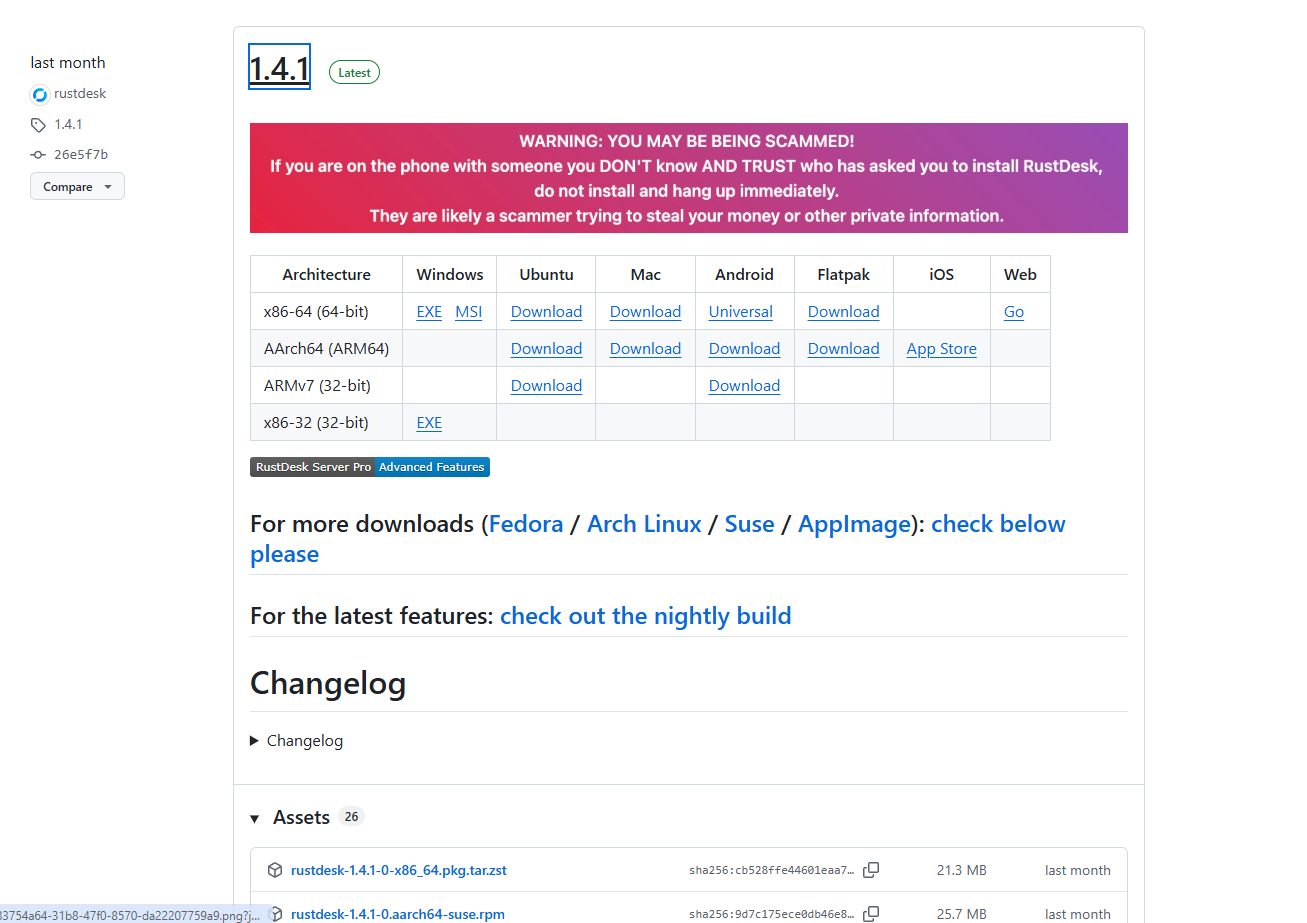
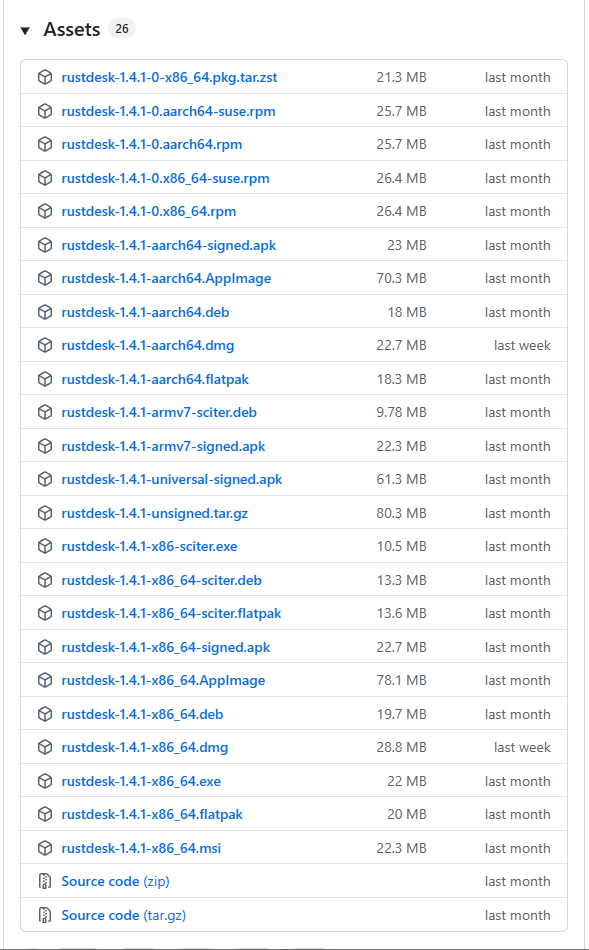
- Select and download the relevant file for your operating system
- Install the application. (Some apps can be run as a portable app without installing. ex: rustdesk-1.4.1-x86_64.exe on windows)
Run
- Run the application
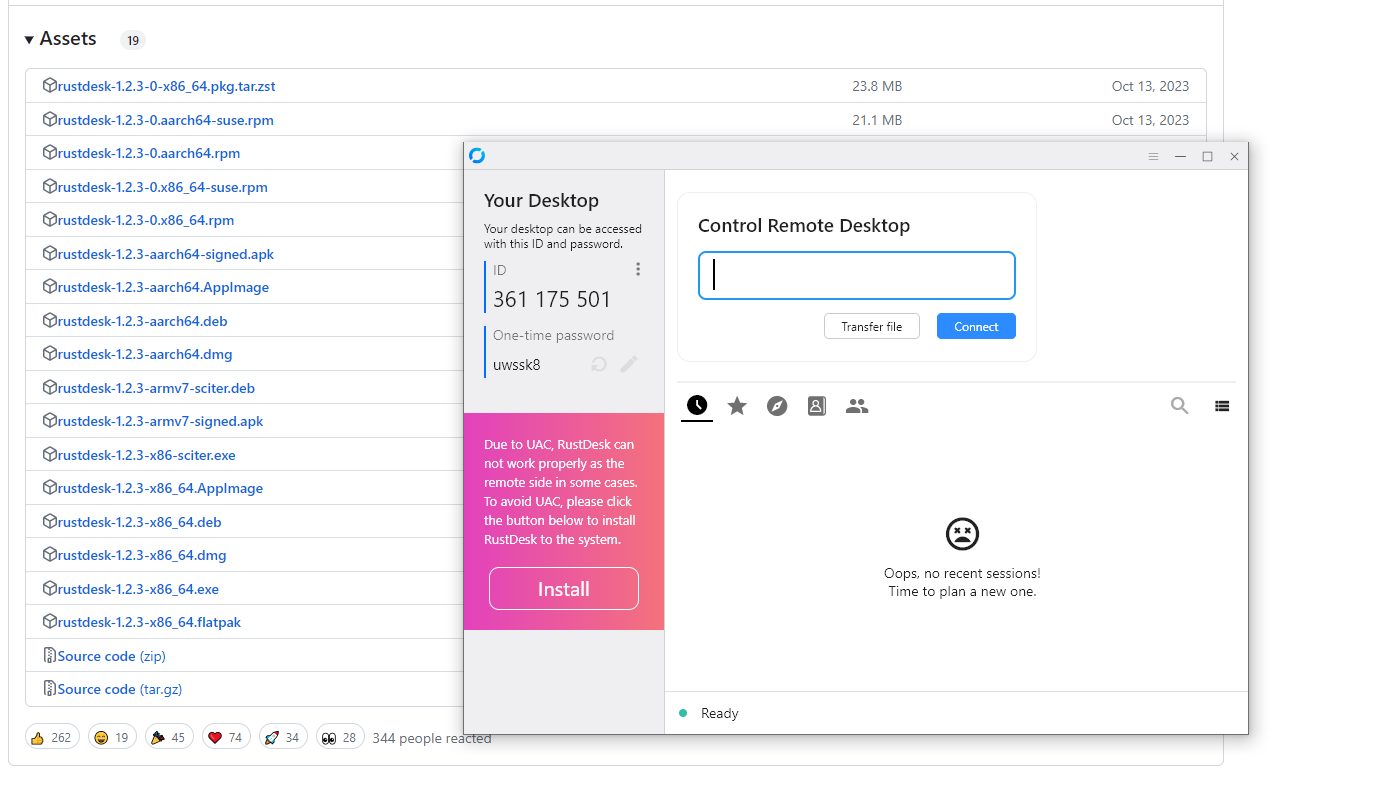
- Click on the setting icons
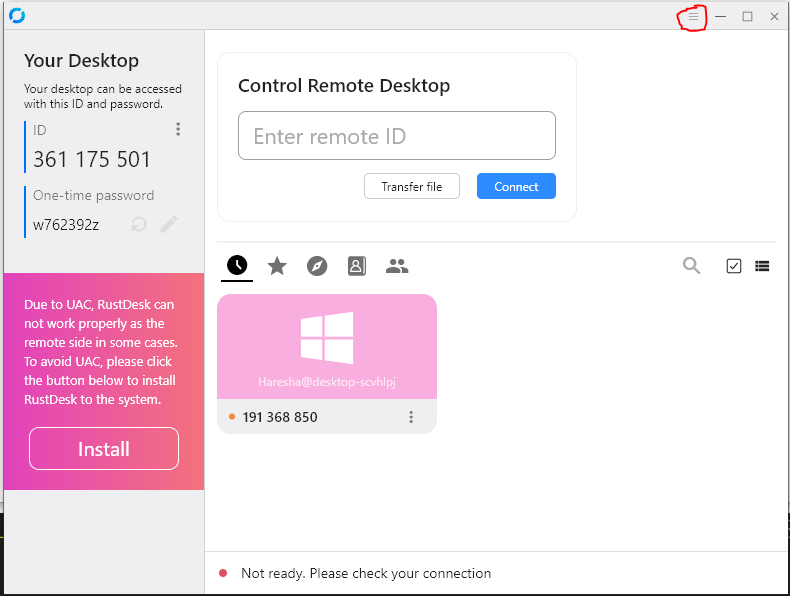
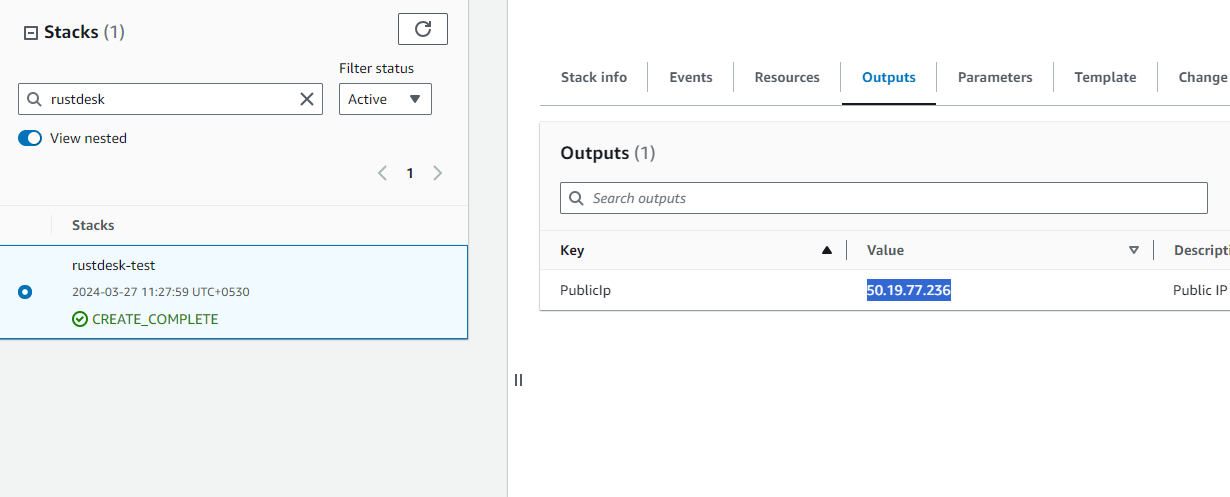
- Find the IP Address of the instance from cloudformation stacks page
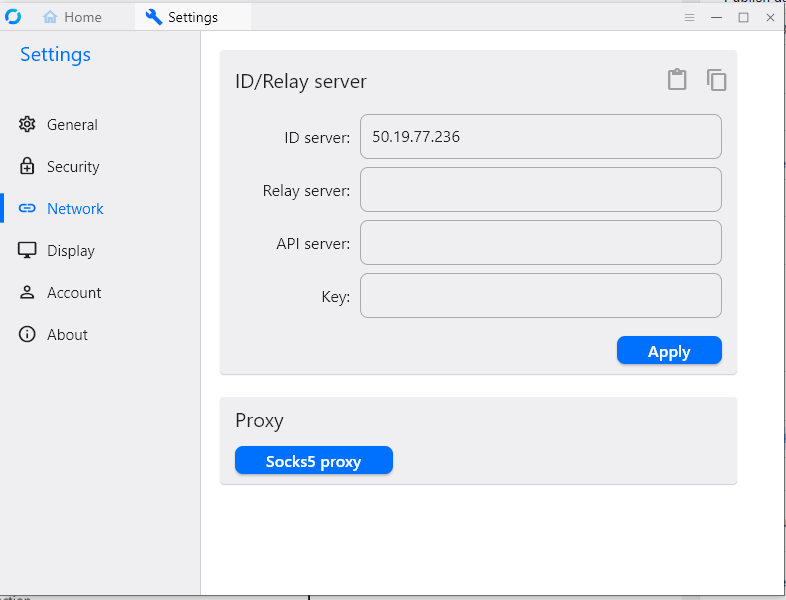
- Go to Network tab and add the IP Address of the instance in ID server
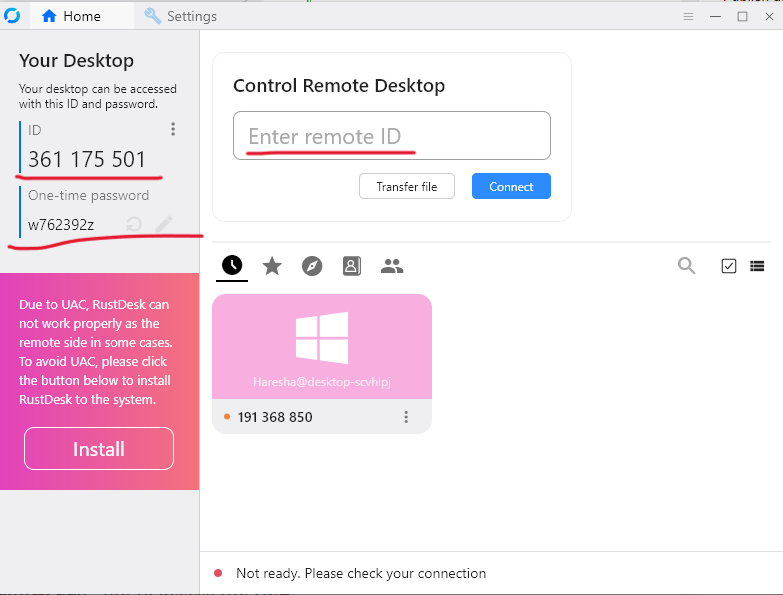
- Go to Home and using your ID and the password, other person can access your computer. (Please make sure you both have installed and run the appication according to given guideline)
Shutting Down Rustdesk
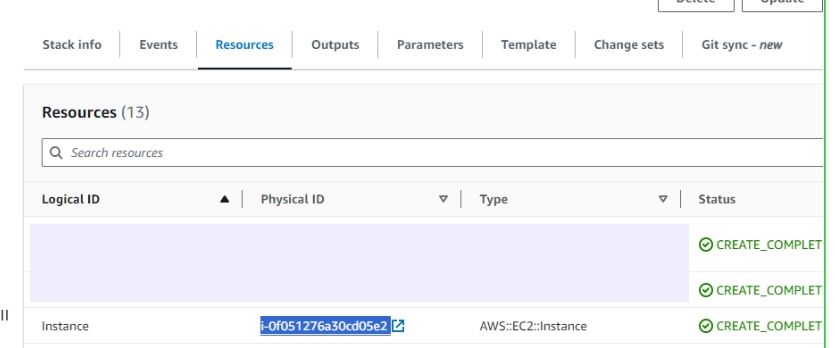
- Click the link labeled "Rustdesk" in the "Resources" tab to access the EC2 instance, you will be directed to the Rustdesk instance in EC2.
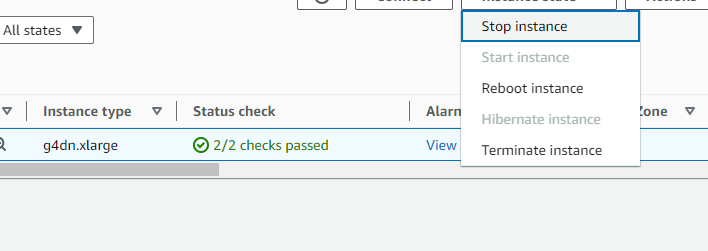
- Select the Rustdesk instance by marking the checkbox and click "Stop instance" from the "Instance state" dropdown. You can restart the instance at your convenience by selecting "Start instance".
Remove Rustdesk
Delete the stack that has been created in the AWS Management Console under 'CloudFormation Stacks' by clicking the 'Delete' button.
Check Server Logs
Step1: Log in to the server
- Open the terminal and go to the directory where your private key is located.
- Paste the following command into your terminal and press Enter:
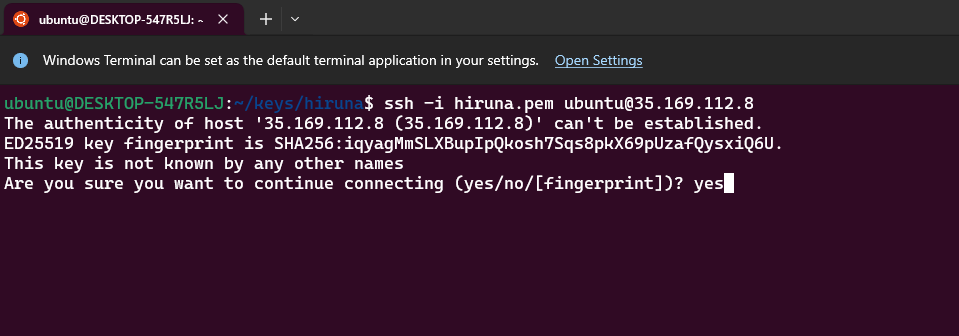
ssh -i <your key name> ubuntu@<Public IP address>- Type "yes" and press Enter. This will log you into the server.
Step2: Check the logs
Rustdesk runs on docker. You can find out the running docker containers and check logs.
sudo docker ps -asudo docker logs <container_name>Upgrades
When there is an upgrade, we will update the product with a newer version. You can check the product version in AWS Marketplace. If a newer version is available, you can remove the previous version and launch the product again using the newer version. Remember to backup the necessary server data before removing.
Troubleshoot
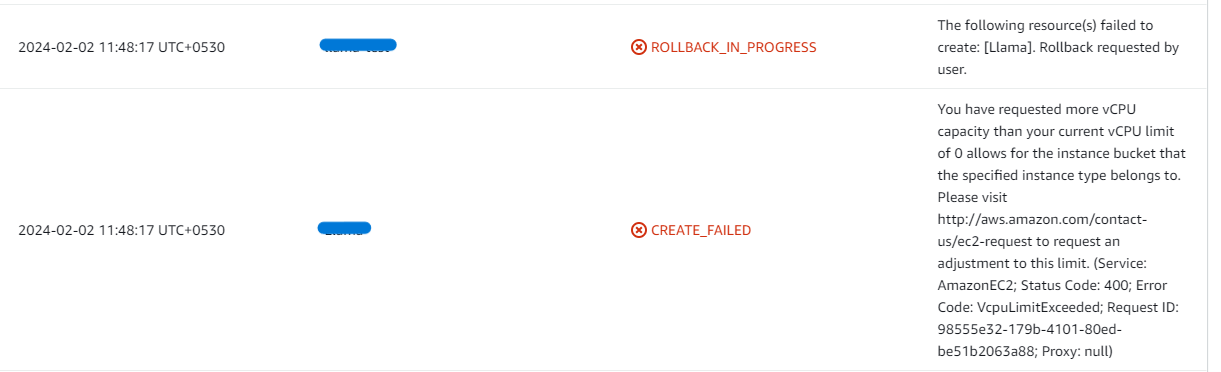
- If you face the following error, please follow this blog to increase vCPU quota.
Conclusion
The Meetrix Rustdesk Developer Guide is your comprehensive resource in the integration of Rustdesk into your AWS setup. Regardless of your level of experience as a developer, our guide offers comprehensive, sequential instructions to guarantee a smooth setup procedure. We hope that Rustdesk will emerge as a compelling alternative to the market giants in the domain of AI-powered image creation tools.
Technical Support
Reach out to Meetrix Support (support@meetrix.io) for assistance with Rustdesk issues.
Frequently Asked Questions
Can I use my own domain name?
Yes. Our solution is designed for you to connect your custom domain. The deployment guide provides clear instructions for DNS configuration.
Is my data secure?
Absolutely. The entire environment runs within your own AWS account, giving you full control over your data, network security, and access policies.
Can I install custom plugins?
Yes, you have full administrative access to your Rustdesk instance to install and manage plugins as needed.
How do I scale the application?
The deployment is built on scalable AWS infrastructure. You can easily upgrade your EC2 instance type or configure auto-scaling groups for higher traffic loads. Our support team can assist with this process.
Ready to Launch Your Own Remote Desktop Solution?
Get started in minutes with our pre-configured AMI and take control of your remote access.
Deploy Rustdesk from AWS Marketplace