Learn how to install and configure Mattermost on AWS with our step-by-step deployment guide. This comprehensive guide walks you through everything from provisioning your cloud environment to securely deploying and optimizing Mattermost for scalability, high availability, and performance on AWS. Whether you're building a DevOps command center or a secure team collaboration hub, this guide will help you get Mattermost running efficiently in the cloud.
Video Guide
Prerequisites
Before you get started with the Mattermost AMI, ensure you have the following prerequisites:
- Basic knowledge of AWS services, including EC2 instances and CloudFormation.
- An active AWS account with appropriate permissions.
- Enough vCPU limit to create instance (Follow this guide to ensure this)
Launching the AMI
Step 1: Find and Select 'Mattermost' AMI
- Log in to your AWS Management Console.
- Navigate to the 'Mattermost' in AWS Marketplace.
Step 2: Initial Setup & Configuration
- Click the "Continue to Subscribe" button.
- After subscribing, you will need to accept the terms and conditions. Click on "Accept Terms" to proceed.
- Please wait for a few minutes while the processing takes place. Once it's completed, click on "Continue to Configuration".
- Select the "CloudFormation script to deploy Mattermost" as the fulfilment option and choose your preferred region on the "Configure this software" page.
- Afterward, click the "Continue to Launch" button.
- From the "Choose Action" dropdown menu in "Launch this software" page, select "Launch CloudFormation" and click "Launch" button.
Create CloudFormation Stack
Step1: Create stack
- Ensure the "Template is ready" radio button is selected under "Prepare template".
- Click "Next".
Step2: Specify stack options
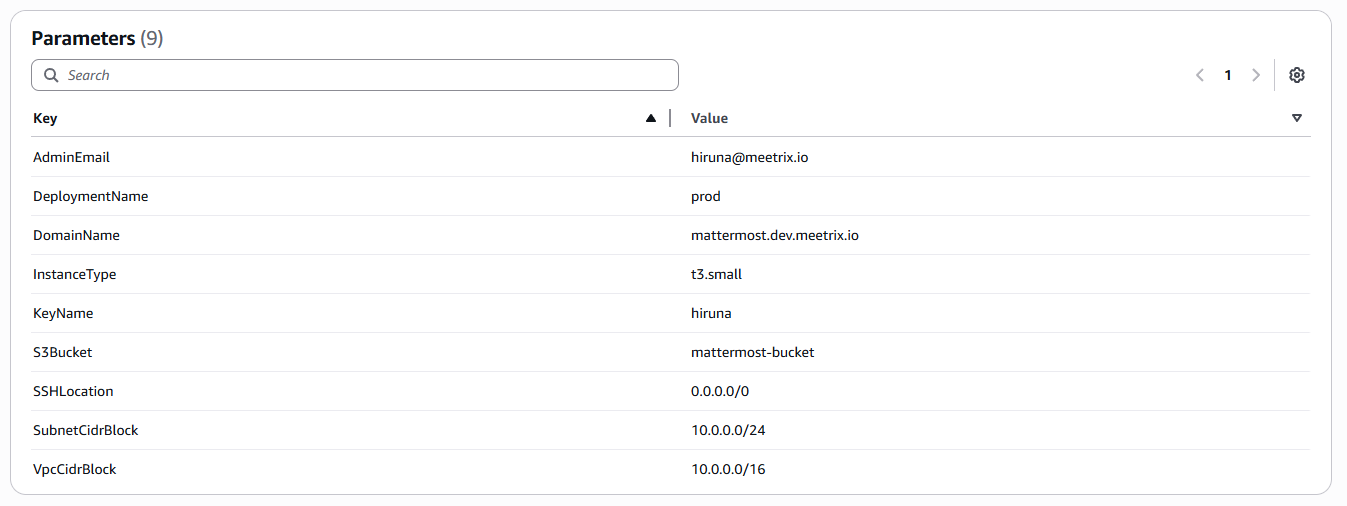
- Provide a unique "Stack name".
- Provide the "Admin Email" for SSL generation.
- For "DeploymentName", enter a name of your choice.
- Provide a public domain name for "DomainName" (Mattermost will automatically try to setup SSL based on provided domain name, if that domain hosted on Route53. Please make sure your domain name hosted on route53. If its unsuccessful then you have to setup SSL manually).
- Choose an instance type, "InstanceType" (Recommended: t3.small).
- Select your preferred "keyName".
- Provide a S3 bucket name to "S3Bucket" for storing Database Backups.
- Set "SSHLocation" as "0.0.0.0/0".
- Keep "SubnetCidrBlock" as "10.0.0.0/24".
- Keep "VpcCidrBlock" as "10.0.0.0/16".
- Click "Next".
Step3: Configure stack options
- Choose "Roll back all stack resources" and "Delete all newly created resources" under the "Stack failure options" section.
- Click "Next".
Step4: Review
- Review and verify the details you've entered.
- Tick the box that says, "I acknowledge that AWS CloudFormation might create IAM resources with custom names".
- Click "Submit".

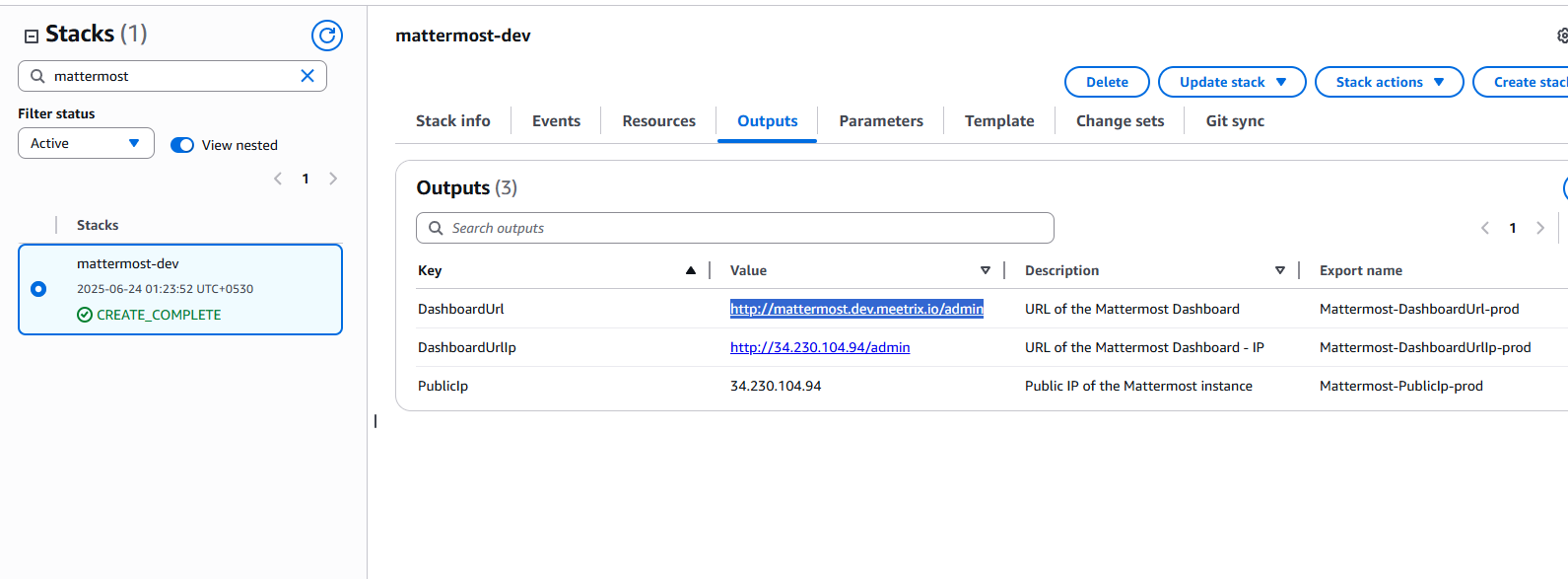
Afterward, you'll be directed to the CloudFormation stacks page.
Please wait for 5-10 minutes until the stack has been successfully created.
Update DNS
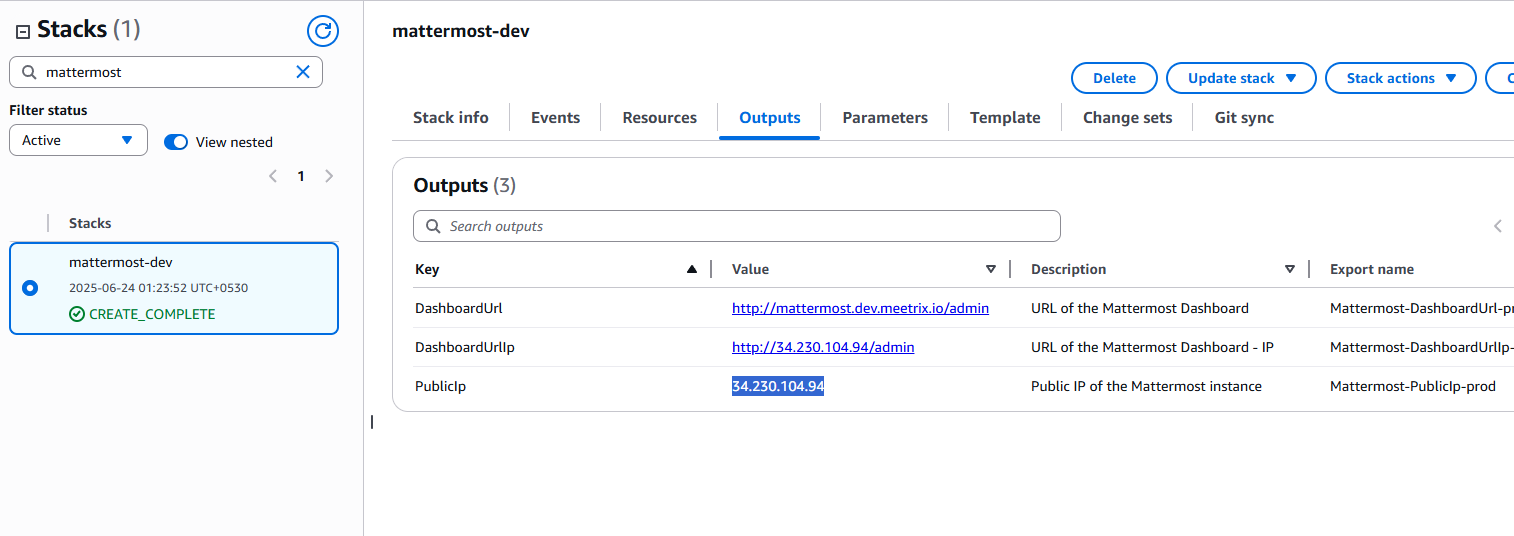
Step1: Copy IP Address
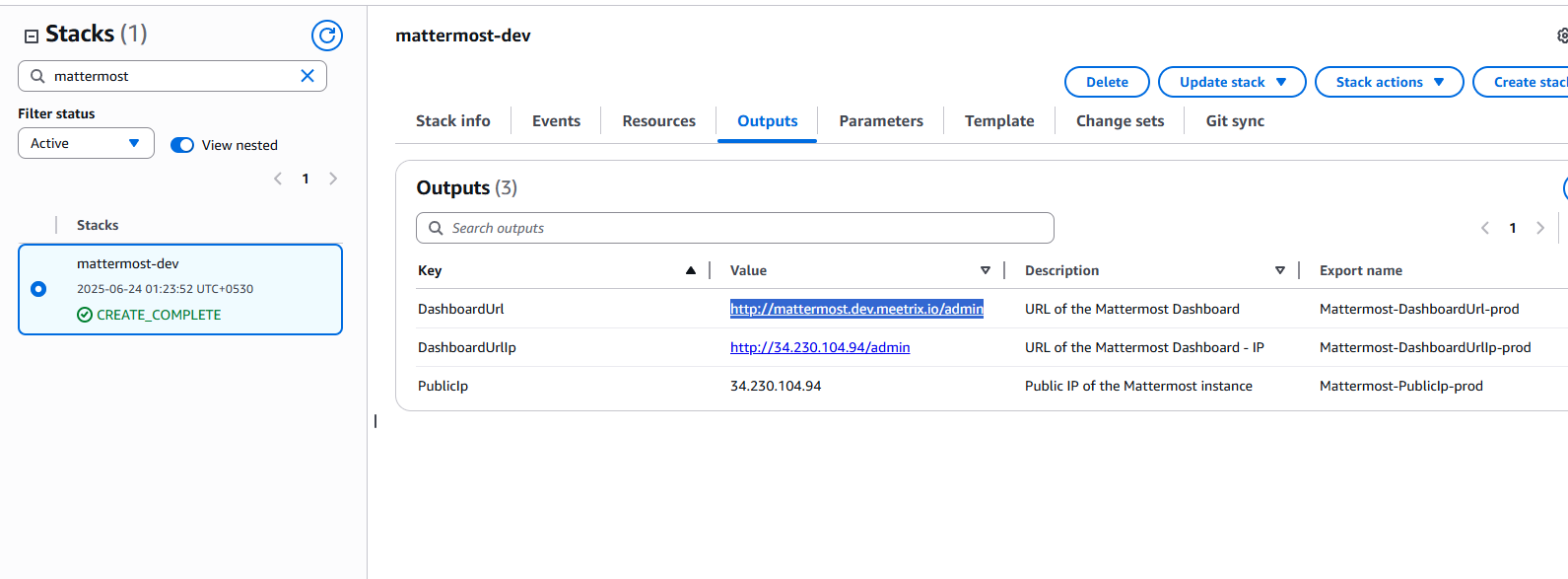
Copy the public Ip labeled "PublicIp" in the "Outputs" tab.
Step2: Update DNS
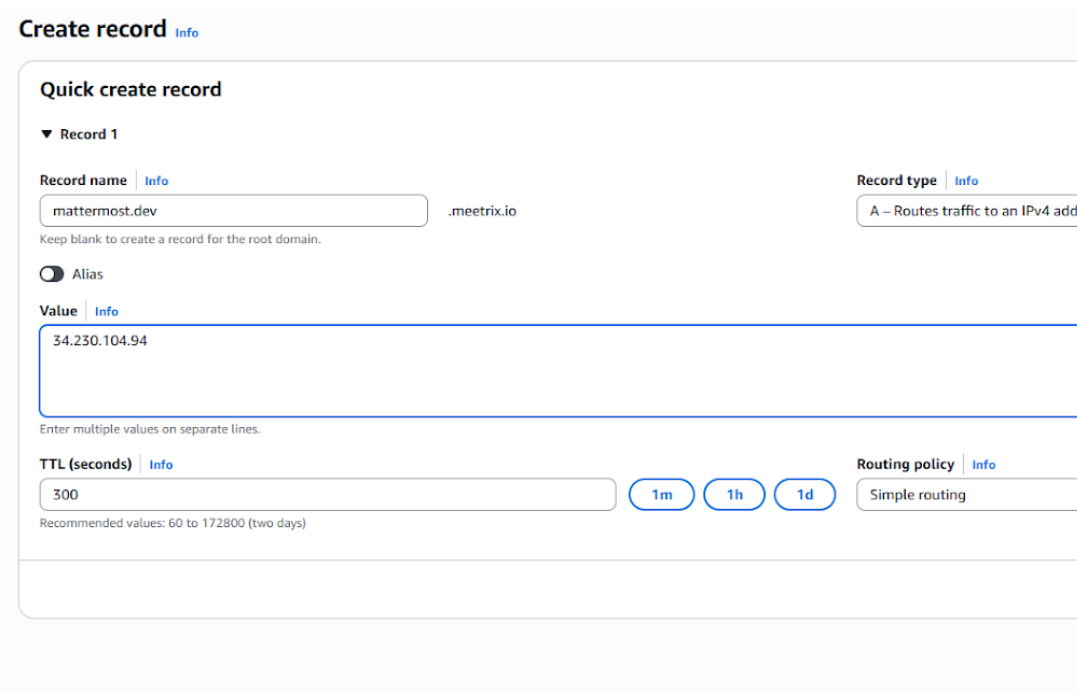
- Go to AWS Route 53 and navigate to "Hosted Zones".
- From there click on Create record.
- Add record name and then paste the copied "PublicIp" into the "value" textbox.
- Click "Save".
Access Mattermost
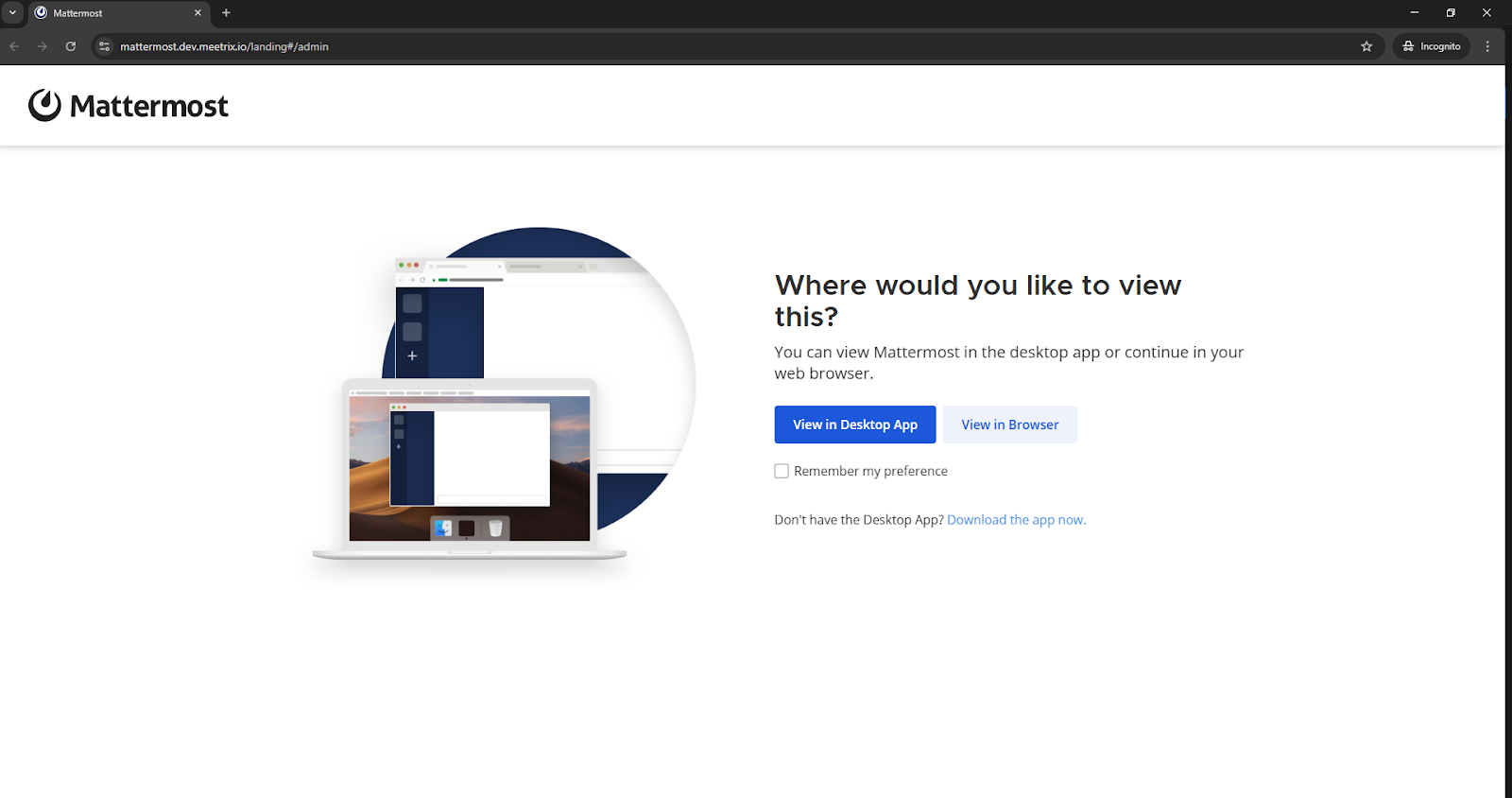
You can setup the Mattermost application through the "DashboardUrl" or "DashboardUrlIp" provided in the "Outputs" tab. This will allow you to create an Admin account and all the future accounts will be created through the Admin panel.
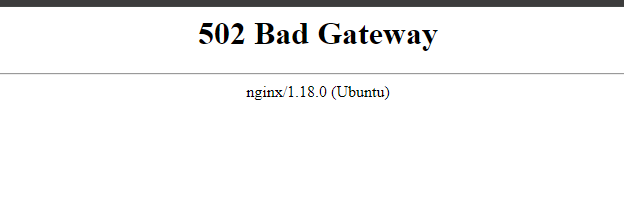
502 Bad Gateway Error?
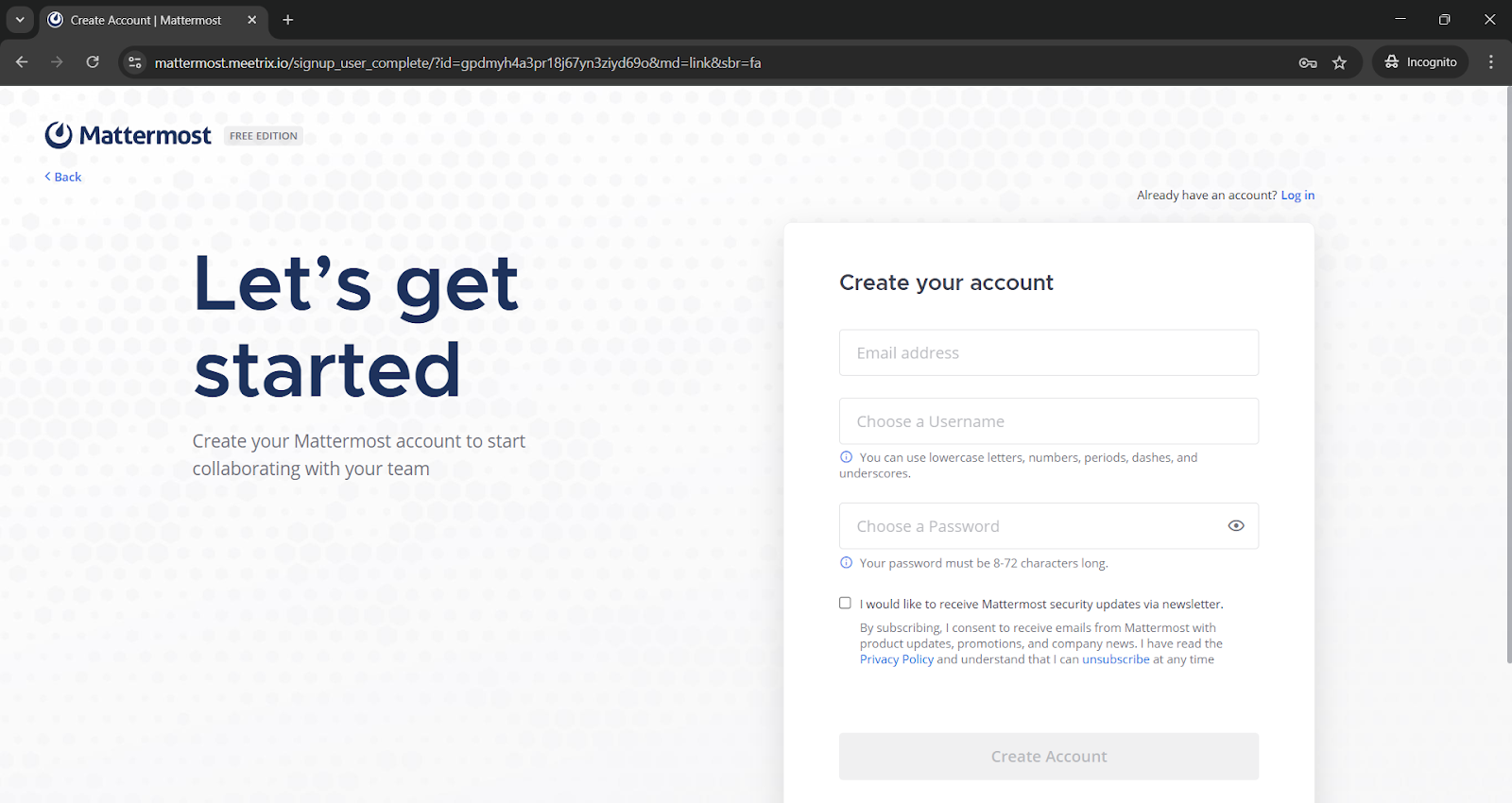
Enter all the required details and click on the “Create Account” button.
Important
Generate SSL Manually
Step1: Copy IP Address
Proceed with the instructions outlined in the above "Update DNS" section, if you have not already done so. Copy the Public IP address indicated as "PublicIp" in the "Outputs" tab.
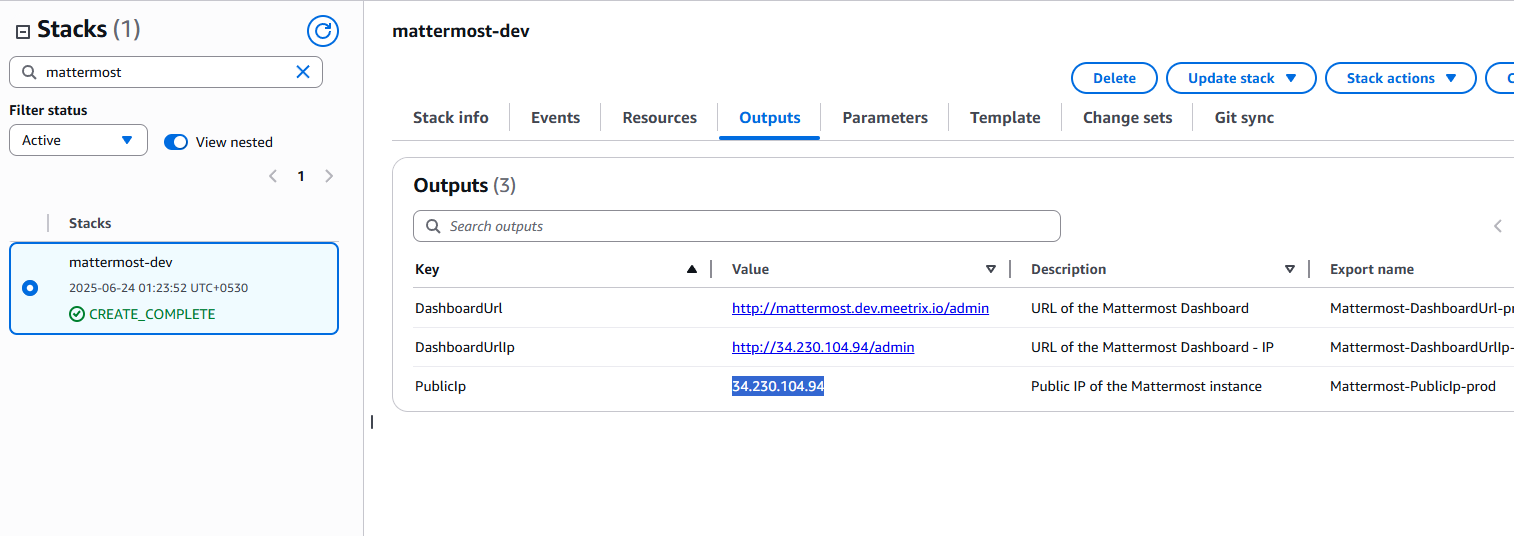
Step2: Log in to the server
- Open the terminal and go to the directory where your private key is located.
- Paste the following command into your terminal and press Enter:
ssh -i <your key name> ubuntu@<Public IP address>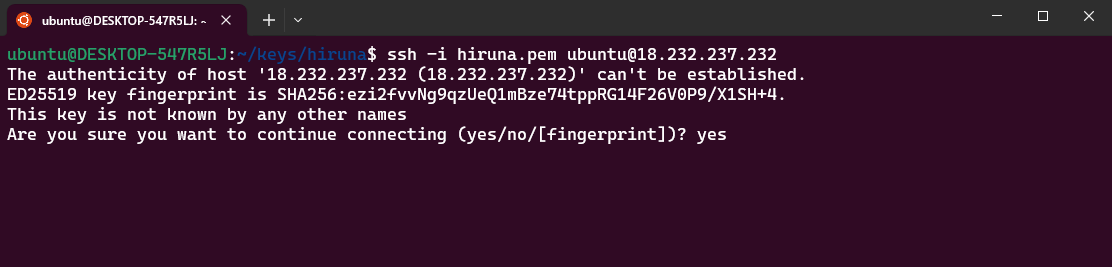
- Type "yes" and press Enter. This will log you into the server.
Step3: Generate SSL
Paste the following command into your terminal and press Enter and follow the instructions:
sudo /root/certificate_generate_standalone.shAdmin Email is acquiring for generate SSL certificates.
Check Server Logs
Step1: Log in to the server
- Open the terminal and go to the directory where your private key is located.
- Paste the following command into your terminal and press Enter:
ssh -i <your key name> ubuntu@<Public IP address>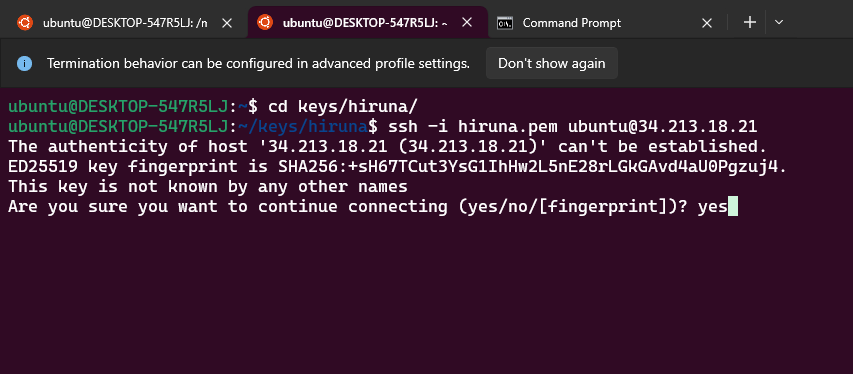
- Type "yes" and press Enter. This will log you into the server.
Step2: Check the logs
List the available containers
sudo docker psSelect the correct container and check logs
sudo docker logs f9
sudo docker logs 58
Shutting Down Mattermost
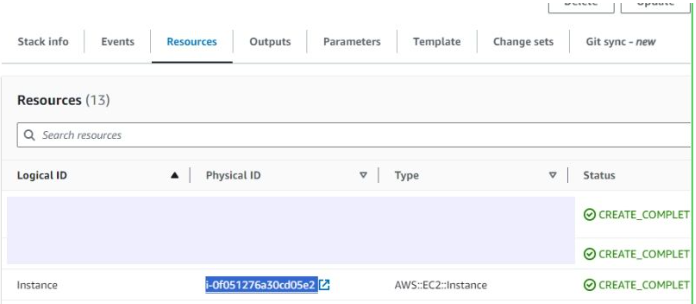
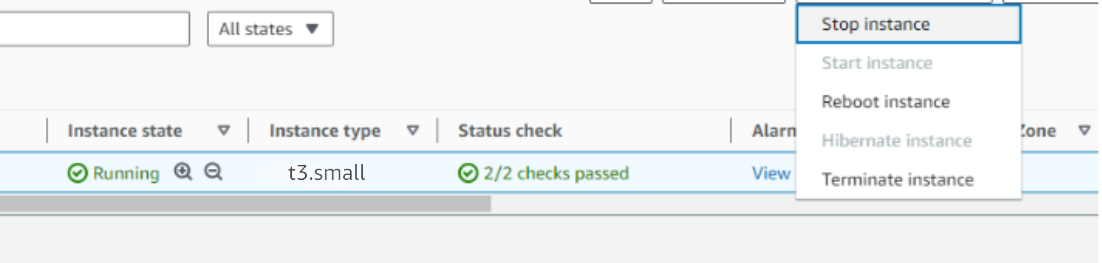
- Click the link labeled "Instance" in the "Resources" tab to access the EC2 instance, you will be directed to the Mattermost instance in EC2.
- Select the Mattermost instance by marking the checkbox and click "Stop instance" from the "Instance state" dropdown. You can restart the instance at your convenience by selecting "Start instance".
Remove Mattermost
Delete the stack that has been created in the AWS Management Console under 'CloudFormation Stacks' by clicking the 'Delete' button.
Upgrades
When there is an upgrade, we will update the product with a newer version. You can check the product version in AWS Marketplace.. If a newer version is available, you can remove the previous version and launch the product again using the newer version. Remember to backup the necessary server data before removing.
Troubleshooting Common Issues
- vCPU Quota Error: If you see an error about vCPU limits, please follow this guide to request an increase.
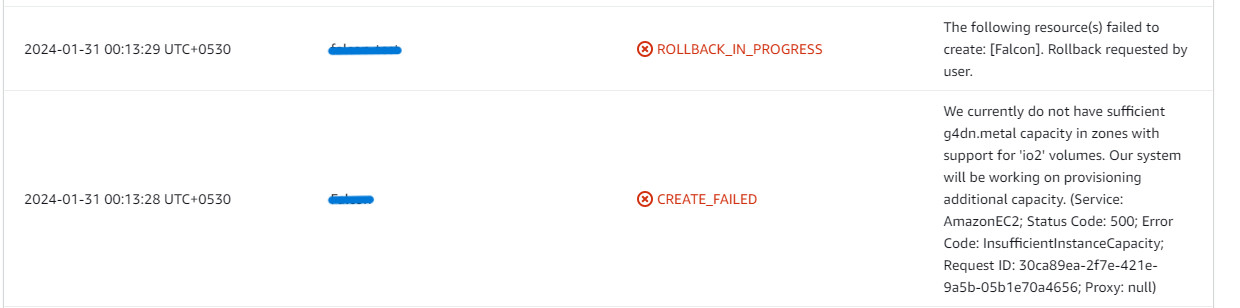
- Insufficient Capacity: If you get an "insufficient instance capacity" error, try launching the stack in a different AWS region or at a later time.
- Dashboard Error on First Load: If the dashboard doesn't load immediately, wait 5-10 minutes for the services to initialize and then try again.
Log into the server and run the below command
df -h
root volume
If the root volume is between 90-100%, it is better to resize EBS volume. Please follow AWS documentation to increase the EBS volume. Then reboot the instance.
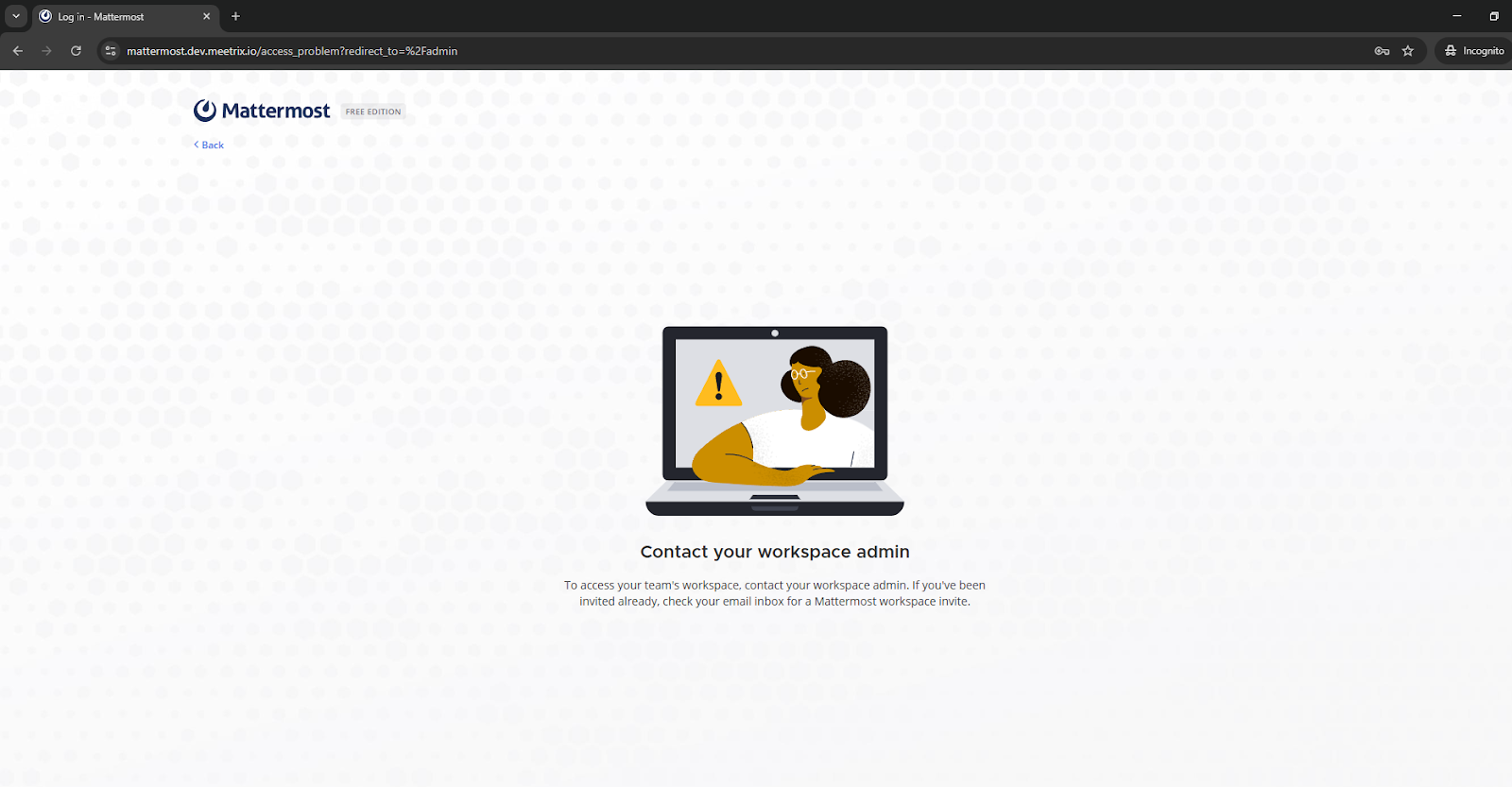
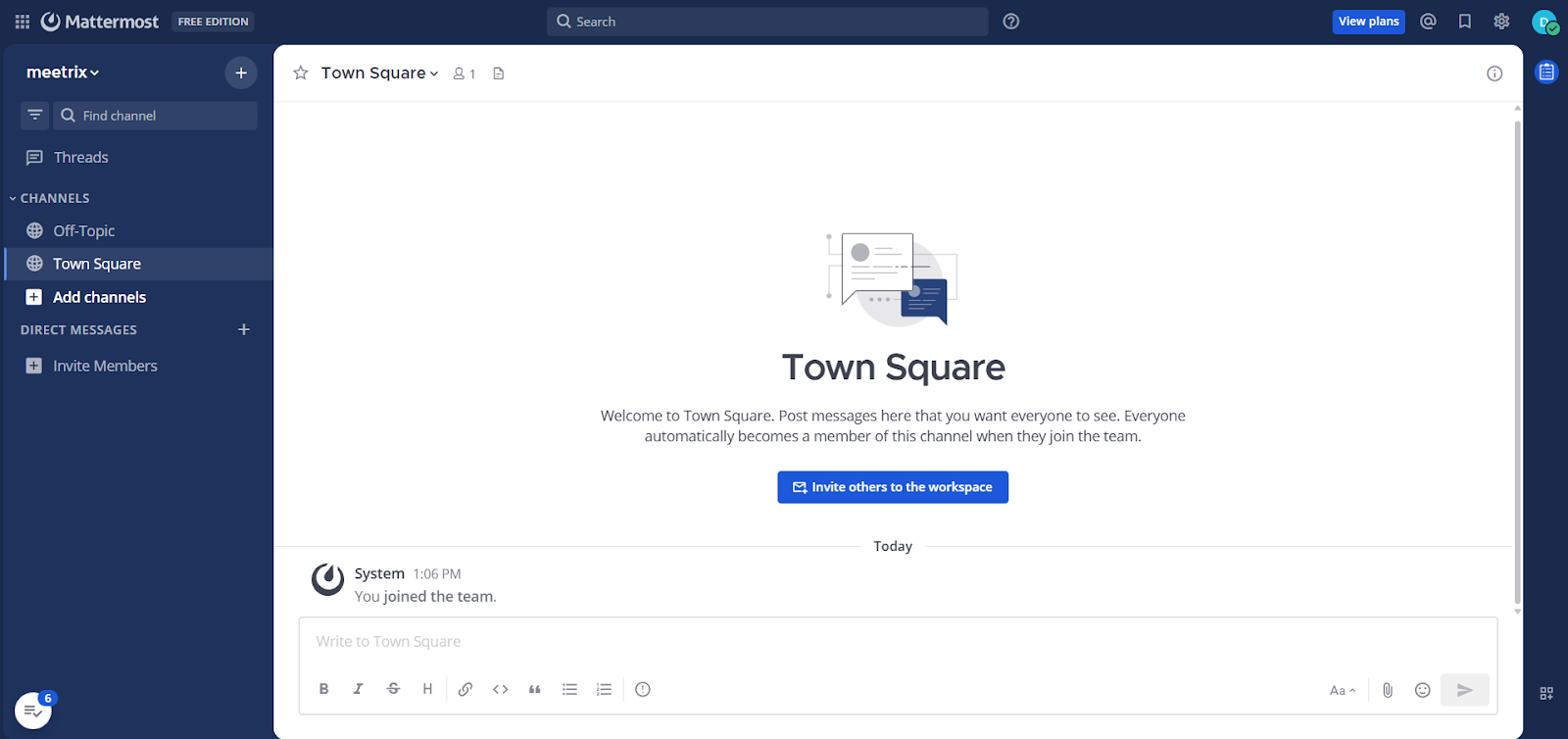
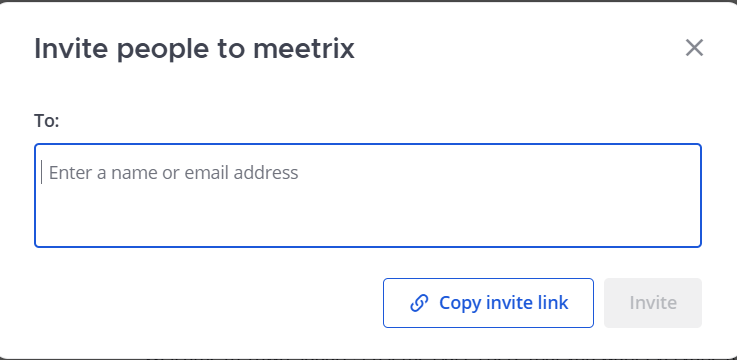
- If you can't access your team's workspace?
If you're unable to sign up or access the workspace:
- If you cant communicate real-time/you need to refresh tab to see messages,
Issue is related to websocket failure.
Go to browser console and check whether you have websocket issues

Then please point DNS and try to access the dashboard using domain name.
Conclusion
Congratulations! You have successfully deployed Mattermost on your AWS account. With this scalable and secure setup, you have full control over your collaboration infrastructure, data, and branding. Whether for personal use or for your business, Mattermost on AWS provides a reliable and cost-effective solution.
Technical Support
If you run into any issues, our support team is here to help. Reach out to us at aws@meetrix.io.
Frequently Asked Questions
Can I customize the Mattermost theme and plugins?
Yes. Meetrix supports full admin access, allowing you to upload and configure themes, modules, and integrations.
Is Mattermost mobile-friendly?
Absolutely. Mattermost includes responsive design and a dedicated mobile app for learners and instructors.
Can this deployment support large numbers of users?
Yes. We help clients scale from a few hundred to tens of thousands of concurrent learners using Mattermost's built-in scalability features.
Is the solution compliant with education data standards (FERPA, GDPR, etc.)?
Yes. Because you own the AWS environment, we can help you configure access, logging, and encryption to meet strict compliance requirements.
Ready to Launch Your Own Collaboration Platform?
Get started in minutes with our pre-configured AMI and take control of your collaboration.
Deploy Mattermost from AWS Marketplace