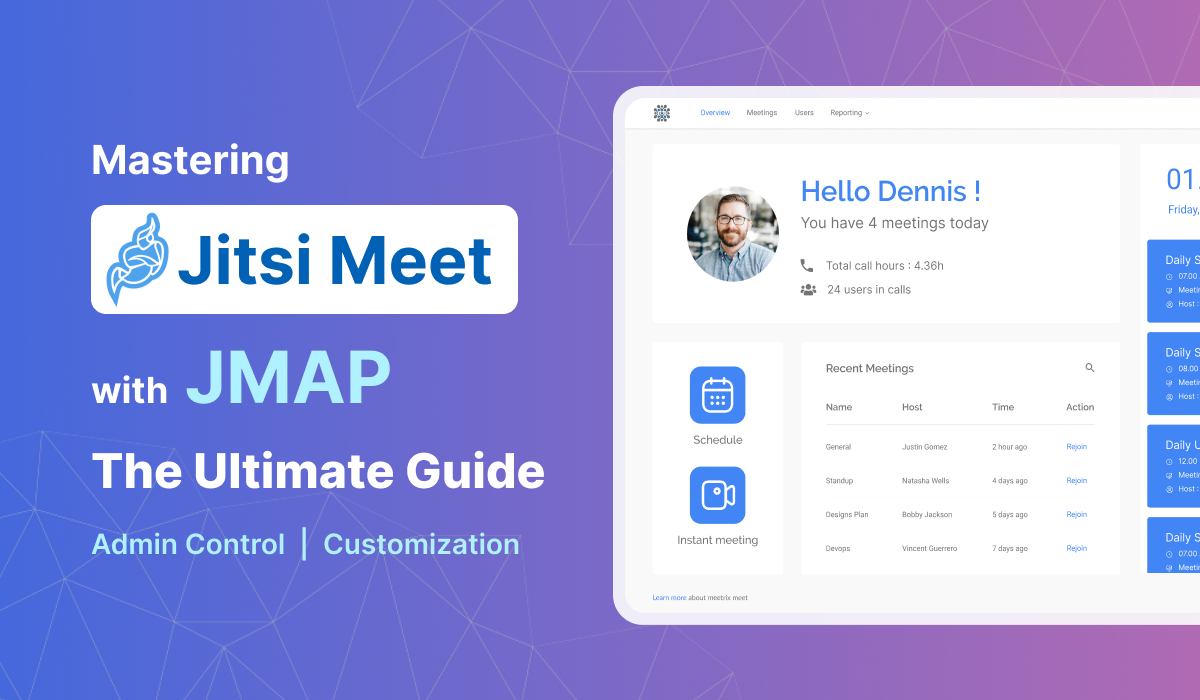
Introduction to JMAP and Jitsi Meet
In an era where seamless virtual communication is paramount, Jitsi Meet has emerged as a leading open-source video conferencing solution. Renowned for its flexibility, robust security, and cost-effectiveness, Jitsi Meet empowers organizations to host their own secure communication platforms. This eliminates reliance on proprietary software and offers users an accessible, browser-based meeting experience.
The open-source model of Jitsi Meet fosters innovation and community-driven enhancements, providing organizations the freedom to customize the platform according to their unique needs. This is particularly valuable for businesses requiring tailored solutions to integrate with existing systems, meet specific security requirements, or enhance user experience.
However, managing and optimizing a customized Jitsi Meet deployment can be complex. This is where JMAP, the Jitsi Meet Admin Panel, becomes indispensable. JMAP serves as the central hub for administrators, offering a comprehensive suite of tools to configure, manage, and monitor Jitsi Meet instances. From controlling user permissions to adjusting security settings and analyzing usage metrics, JMAP empowers organizations to take full control of their video conferencing environment.
In this blog post, we’ll delve into the features and functionalities of JMAP, exploring how it can streamline administration, enhance customization, and ensure that your Jitsi Meet deployment meets the highest standards of performance and security.
Key Takeaways
- JMAP is crucial for managing and optimizing Jitsi Meet deployments.
- It offers centralized control over user management, configuration, and monitoring.
- JMAP enhances security and allows for extensive customization of the Jitsi Meet platform.
- Understanding JMAP's features is essential for efficient video conferencing administration.
Understanding JMAP: The Jitsi Meet Admin Panel
For administrators navigating the complexities of a Jitsi Meet deployment, the Jitsi Meet Admin Panel (JMAP) is an indispensable tool. It acts as a centralized command center, simplifying the oversight and configuration of your video conferencing platform to ensure smooth operations and adherence to organizational standards.
Defining JMAP
JMAP is designed to simplify the administration of Jitsi Meet by offering a comprehensive set of features within a single interface. This panel is crucial for organizations that host their own Jitsi Meet instance, as it provides the control needed to manage and customize the platform effectively.
With JMAP, administrators can:
- Access a Centralized Dashboard: The dashboard provides a unified view of the Jitsi Meet environment, making it easier to navigate and manage different components.
- Manage User Roles and Permissions: Administrators can define and control user roles, ensuring that individuals have appropriate access to features and functionalities based on their responsibilities.
The Role of JMAP
JMAP plays a vital role in the administration of Jitsi Meet by streamlining key management tasks:
- User Management: Through JMAP, administrators can add or remove users, assign roles, and set permissions. This ensures that only authorized users can access certain features or join specific meetings. For instance, you can create roles for regular users, moderators, and administrators, each with different levels of access and control.
- Configuration Management: JMAP allows for detailed configuration of Jitsi Meet settings. Administrators can adjust options such as meeting settings (e.g., default meeting durations, participant limits), security protocols (e.g., password requirements, encryption settings), and integration options (e.g., linking with other software tools).
- Monitoring and Analytics: The admin panel provides tools for monitoring system performance and usage. Administrators can view real-time statistics, generate reports on meeting usage, and track key metrics such as the number of active users, meeting durations, and system health.
The Significance of JMAP
For organizations deploying Jitsi Meet, JMAP is a critical component for several reasons:
- Centralized Management: JMAP offers a single interface for managing all administrative tasks, reducing complexity and improving efficiency. Instead of navigating multiple systems or interfaces, administrators can perform all necessary tasks from one place.
- Enhanced Security: By providing tools to manage security settings and monitor user activity, JMAP helps ensure that the Jitsi Meet deployment adheres to organizational security policies. This includes enforcing encryption standards, controlling access to meetings, and managing data privacy.
- Customization Capabilities: JMAP supports extensive customization, allowing organizations to tailor their Jitsi Meet deployment to their specific needs. This can include adding custom branding, integrating with other enterprise systems, and configuring features to enhance the user experience.
In summary, JMAP is more than just an administrative tool; it is the backbone of Jitsi Meet’s operational management. It empowers administrators to maintain control, optimize performance, and ensure that the platform meets the needs of both users and the organization as a whole.
Key Features of JMAP for Efficient Management
The Jitsi Meet Admin Panel (JMAP) is packed with powerful features designed to give administrators complete control over their video conferencing environment. From managing meetings to handling user permissions, JMAP streamlines essential tasks. Let's explore the core functionalities that make JMAP an invaluable asset for optimizing your Jitsi Meet deployment.
Creating Meetings
Jitsi Meeting Manager allows you to create two types of meetings:
Instant Meetings
This option enables you to create an instant meeting at the click of a button. Simply assign a name to your meeting and share the meeting link with participants.
Schedule Meetings
You can schedule a meeting using this option, which offers more configuration options than instant meetings. Enter a meeting name, date, starting and ending times, and the expected number of participants. The meeting will be added to your upcoming schedule, and you can share the meeting link with anyone who wants to join at the scheduled date and time.
View and Update Meetings
Viewing Meeting Information
Get a quick overview of your recent and upcoming meetings from the Overview tab. For a more detailed view, visit the Meetings tab.
Meeting Management
The "More" column in the Meetings tab offers various management options, including viewing, editing, sharing invitation links, and deleting meetings.
User Information Management
Viewing Admin User Information
View the details of all users in your Jitsi Meeting Manager by navigating to the Users tab.
Adding Admin Users
Adding users to Jitsi Meeting Manager is straightforward. Submit the name, email, and password of the user. Users added will be able to manage all meetings, users, and other settings within the system.
Admin User Management
The "More" column on the Users tab allows you to delete users and change user passwords.
There is only one Super Admin user, typically responsible for creating and managing all other admin users and configuring platform settings like FAQ, terms of service, and privacy policy.
General Settings
Please note that the following settings are only configurable by the Super Admin of the system:
User Profile Settings
The settings page allows you to make changes to your user profile, such as updating your name and password.
Company/Brand Information
Update various company/brand information, including system title, time zone, company name, date format, meeting end page text, company logo, and meeting end page banner. This option allows you to customize your Jitsi Meeting Manager according to your company's brand.
Privacy Policy, Terms of Use and FAQ
Add your company's privacy policy, terms of use, and FAQs related to video conferencing.
Contact Us
Add your company contact information and links to social media accounts.
Meeting Recording
Enable or disable meeting recording for both moderators and participants.
If you are interested in getting a Jitsi Meeting Manager to manage all the Jitsi meetings of your organization, feel free to contact us at Meetrix. Our teams are more than happy to discuss your video conferencing needs and deliver customized solutions that suit your business.
Click here to learn more about how you can set up admin users and schedule meetings with Jitsi Meeting Manager.
Step-by-Step Guide: Admin Users and Meeting Scheduling in JMAP
Effectively managing users and scheduling meetings are fundamental to a well-organized Jitsi Meet environment. The Jitsi Meet Admin Panel simplifies these critical tasks with intuitive workflows. This section provides a concise, step-by-step guide on how to configure admin users and efficiently schedule meetings within JMAP.
Setting up Admin Users
There are two types of admin users in the Jitsi Meet Admin Panel:
Super Admin Users
There is only one Super Admin user in the Jitsi Meet Admin Panel. This individual is responsible for creating and managing all other admin users and possesses full system rights. The Super Admin can perform the following operations:
- Create and schedule both immediate and future meetings.
- Manage recent and upcoming meetings, including sharing meeting links with participants, editing meeting details, and deleting meetings.
- Add new users to the Jitsi Meet Admin Panel.
- Manage existing users by changing their passwords and removing them from the system.
- Update general settings to align with your company’s branding.
- Add or modify the company’s privacy policy, terms of service, and FAQs as needed.
Admin Users
The Super Admin user can add Admin users to the Jitsi Meet Admin Panel, allowing them to assist in creating, scheduling, and managing meetings. Admin users have the following capabilities:
- Create instant meetings and schedule meetings for a future date.
- Manage both recent and upcoming meetings, including sharing meeting links with participants, editing meeting details, and deleting meetings.
How to Set Up Admin Users
Setting up admin users is a straightforward process that only requires a few steps:
Step 1: Log In
Log in to your account using your Facebook or Google credentials, or enter your email and password and click "Sign In."
Step 2: Navigate to Users Tab
After accessing your dashboard, navigate to the "Users" tab.
Step 3: Add Users
Click on the "Add Users" button.
Step 4: Enter User Details
Enter the user’s name and email address, assign a password, and then click "Continue."
By following these straightforward steps, you can easily add admin users to your Jitsi Meet Admin Panel.
Scheduling Meetings
Overview of Meeting Scheduling
You don't need to wait until your meetings are about to start to plan them and invite participants. The system allows you to schedule your meetings in advance, which helps you organize your work schedule and inform participants ahead of time.
How to Schedule Meetings
Scheduling meetings with the Jitsi Meet Admin Panel involves a few simple steps:
Step 1: Log In
Log in to your Jitsi Meet Admin Panel account using your Facebook or Google credentials, or enter your email and password and click "Sign In."
Step 2: Click Schedule Button
Once you're on your dashboard, click the "Schedule" button to start the meeting scheduling process.
Step 3: Enter Meeting Details
Enter a name for your meeting, along with the date, start and end times, and the expected number of participants. Click "Save Meeting" to add the meeting to your upcoming schedule.
Step 4: Share Meeting Link
Finally, copy the meeting link to share with anyone who needs to join the upcoming meeting.
If you’re interested in acquiring a Jitsi Meet Admin Panel to manage all your organization’s Jitsi meetings, please contact us at Meetrix. Our team is ready to discuss your video conferencing needs and provide customized solutions that align with your business requirements.
Conclusion: Empowering Your Jitsi Meet Deployment with JMAP
In conclusion, JMAP stands as a cornerstone for effective Jitsi Meet administration, offering a robust suite of tools for unparalleled control and customization. By leveraging JMAP, organizations can ensure their video conferencing environment is not only smooth and secure but also perfectly aligned with their operational needs. From efficient user management to streamlined meeting scheduling, JMAP significantly enhances productivity and simplifies complex administrative tasks.
By leveraging the features of JMAP, organizations can not only maintain control over their video conferencing environment but also tailor it to align with their specific requirements. The ability to schedule meetings in advance and manage user access with ease further empowers teams to focus on their core tasks without worrying about administrative complexities.
If you’re looking to optimize your Jitsi Meet deployment and want to explore how JMAP can benefit your organization, we at Meetrix are here to help. Contact us to discuss your video conferencing needs and discover customized solutions that fit your business perfectly. We’re eager to assist you in achieving seamless communication and collaboration through Jitsi Meet.
Frequently Asked Questions
What is JMAP?
JMAP, or Jitsi Meet Admin Panel, is an essential tool for administrators managing a Jitsi Meet deployment. It provides a centralized hub for overseeing and configuring various aspects of the Jitsi Meet platform.
What are the key features of JMAP?
JMAP offers features such as creating instant and scheduled meetings, managing user roles and permissions, configuring Jitsi Meet settings, and monitoring system performance and usage.
How does JMAP enhance security?
JMAP helps ensure that the Jitsi Meet deployment adheres to organizational security policies by providing tools to manage security settings, enforce encryption standards, control access to meetings, and manage data privacy.
Can JMAP be customized?
Yes, JMAP supports extensive customization, allowing organizations to tailor their Jitsi Meet deployment to their specific needs, including adding custom branding and integrating with other enterprise systems.
What is the difference between Super Admin and Admin users in JMAP?
There is only one Super Admin user who has full system rights, including creating and managing all other admin users and configuring platform settings. Admin users can create and manage meetings, but have limited access to general settings.
Optimize Your Jitsi Meet Deployment
Ready to take full control of your Jitsi Meet environment? Contact Meetrix to discuss your specific needs and get customized solutions for enhanced administration, security, and performance.
Contact Meetrix Today