
Welcome to the Meetrix Coolify Developer Guide! This guide is designed to assist you in seamlessly integrating Coolify into your AWS environment through detailed, step-by-step instructions.
Coolify is a self-hostable platform offering the convenience of cloud services while allowing users to manage servers, applications, and databases on their own hardware through a simple SSH connection, providing a vendor lock-in-free solution for personalized server management and control.
Video Guide

Prerequisites
Before you get started with the Coolify AMI, ensure you have the following prerequisites:
- Basic knowledge of AWS services, including EC2 instances and CloudFormation.
- An active AWS account with appropriate permissions.
- Enough vCPU limit to create instances (Follow https://meetrix.io/articles/how-to-increase-aws-quota/ blog to ensure this)
Launching the AMI
Step 1: Find and Select 'Coolify' AMI
- Log in to your AWS Management Console.
- Navigate to the 'Coolify' in AWS Marketplace.
Step 2: Initial Setup & Configuration
- Click the "Continue to Subscribe" button.
- After subscribing, you will need to accept the terms and conditions. Click on "Accept Terms" to proceed.
- Please wait for a few minutes while the processing takes place. Once it's completed, click on "Continue to Configuration".
- Select the "CloudFormation Template" as the fulfilment option and choose your preferred region on the "Configure this software" page. Afterward, click the "Continue to Launch" button.
- From the "Choose Action" dropdown menu in "Launch this software" page, select "Launch CloudFormation" and click "Launch" button.
Create CloudFormation Stack
Step1: Create stack
- Ensure the "Template is ready" radio button is selected under "Prepare template".
- Click "Next".
Step2: Specify stack options
- Provide a unique "Stack name".
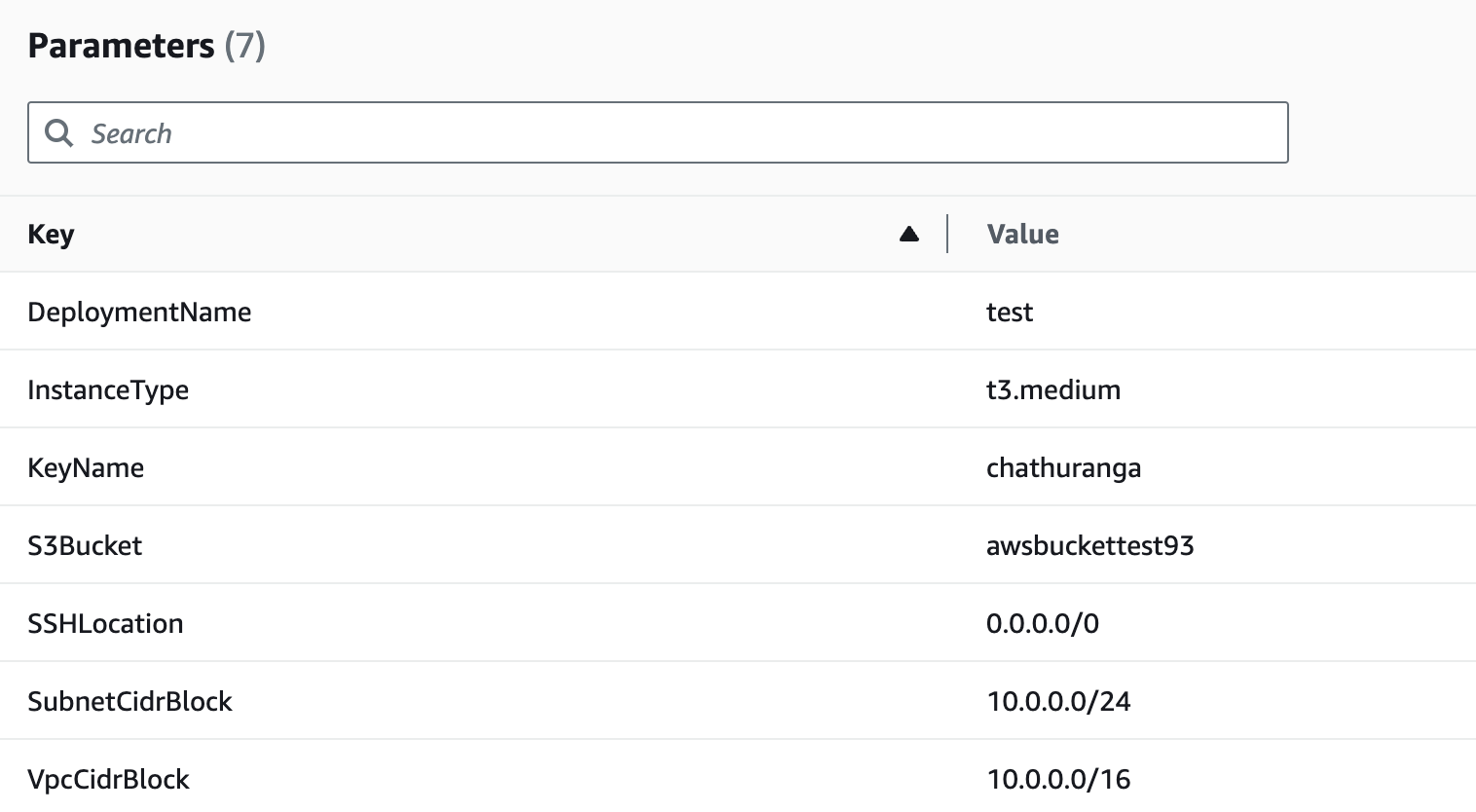
- For "DeploymentName", enter a name of your choice.
- Choose an instance type, "InstanceType" (Recommended: t3.medium).
- Select your preferred "keyName".
- Provide a S3 bucket name to "S3Bucket" for storing PostgreSQL backups.
- Set "SSHLocation" as "0.0.0.0/0".
- Keep "SubnetCidrBlock" as "10.0.0.0/24".
- Keep "VpcCidrBlock" as "10.0.0.0/16".
- Click "Next".
Step3: Configure stack options
- Choose "Roll back all stack resources" and "Delete all newly created resources" under the "Stack failure options" section.
- Click "Next".
Step4: Review
- Review and verify the details you've entered.
- Tick the box that says, "I acknowledge that AWS CloudFormation might create IAM resources with custom names".
- Click "Submit".

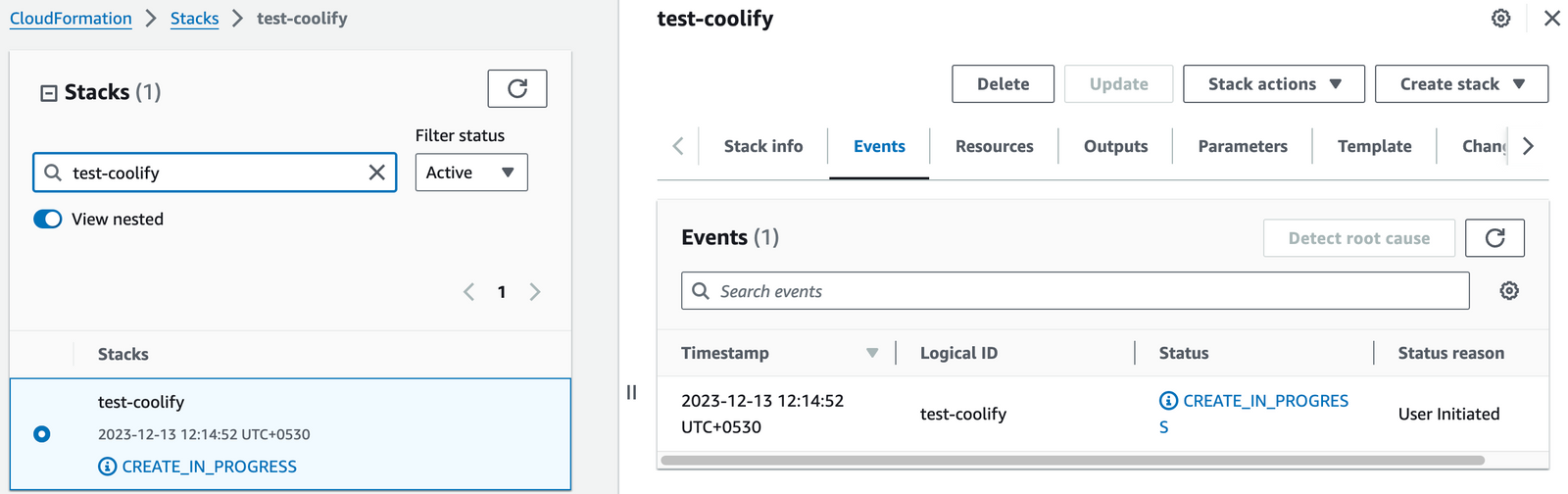
Afterward, you'll be directed to the CloudFormation stacks page.
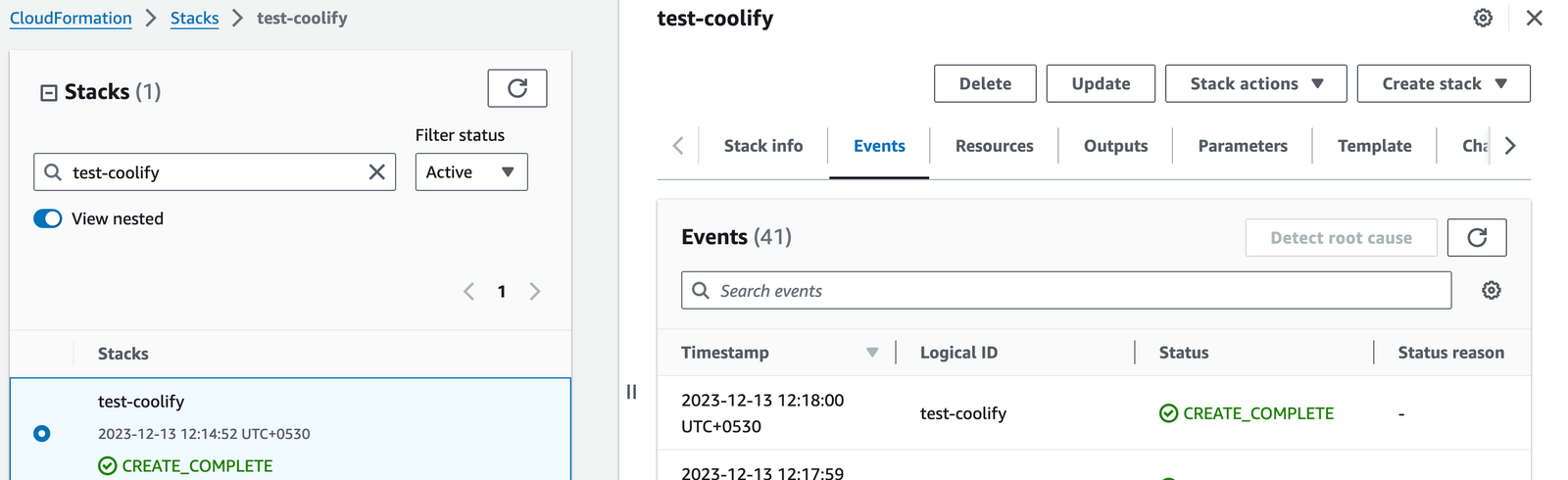
Please wait for 5-10 minutes until the stack has been successfully created.
Access Coolify
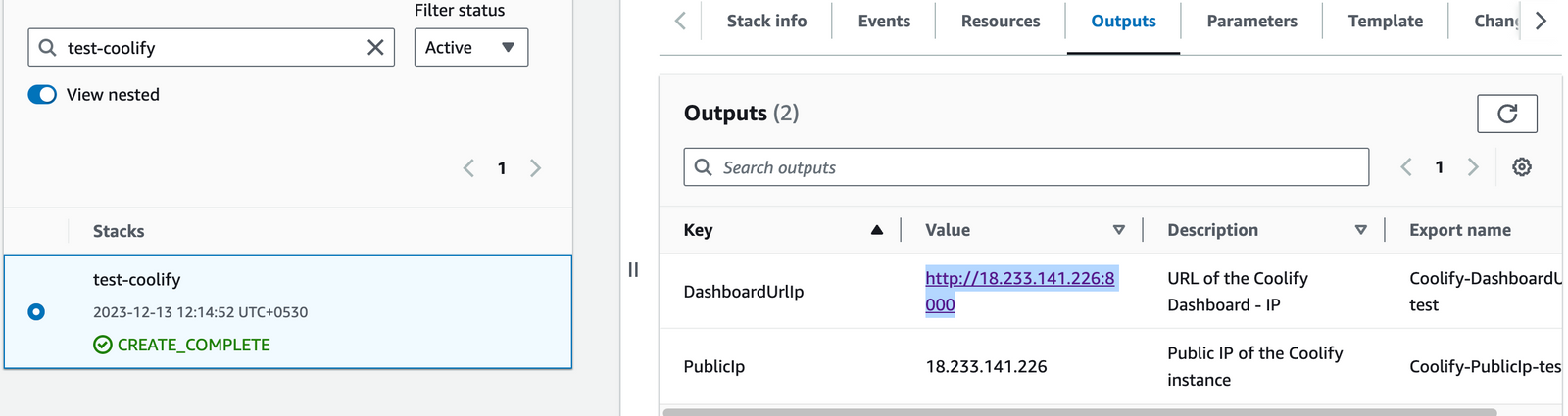
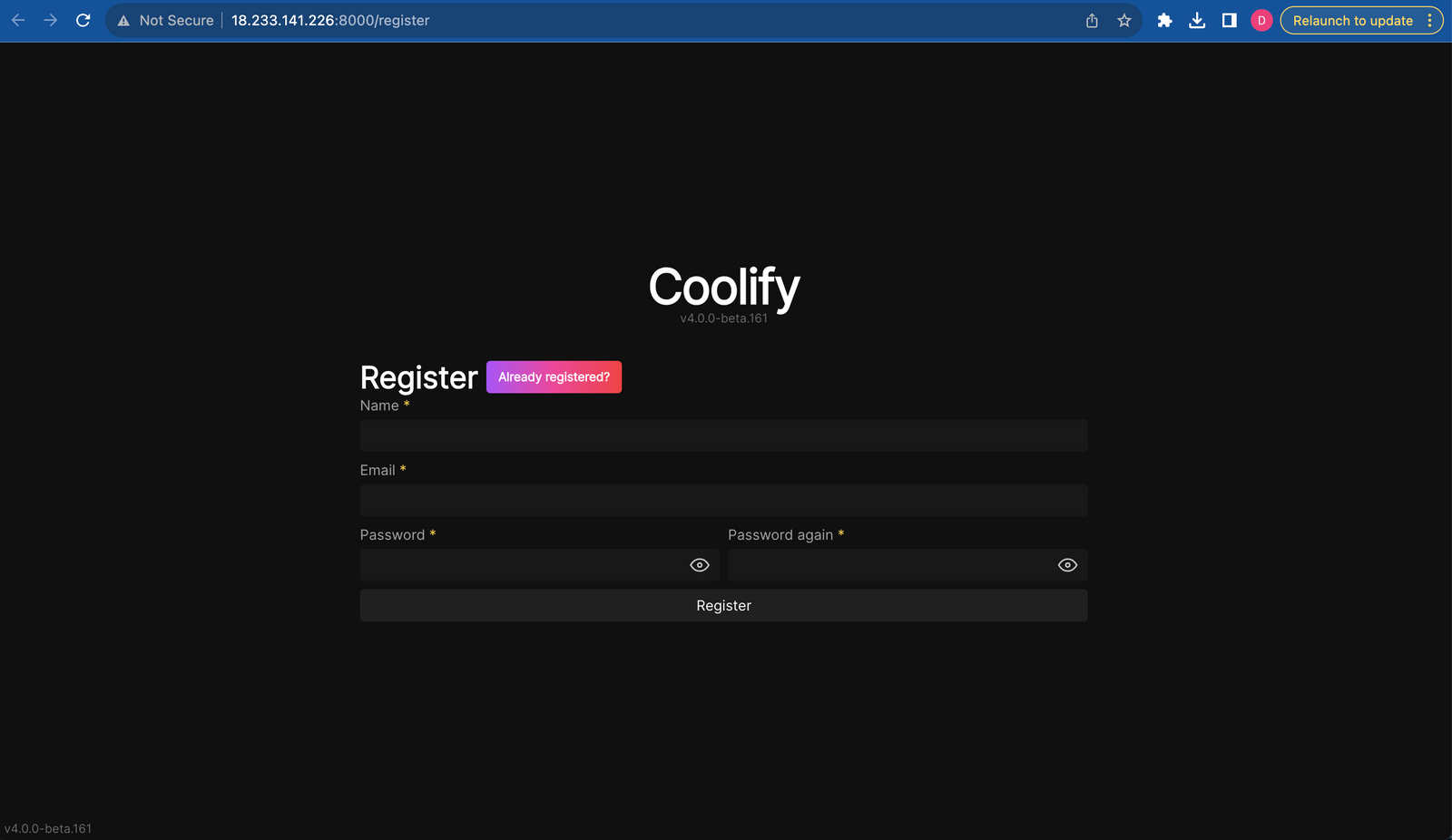
You can access the Coolify application through "DashboardUrlIp" provided in the "Outputs" tab.
502 Bad Gateway error
Shutting Down Coolify
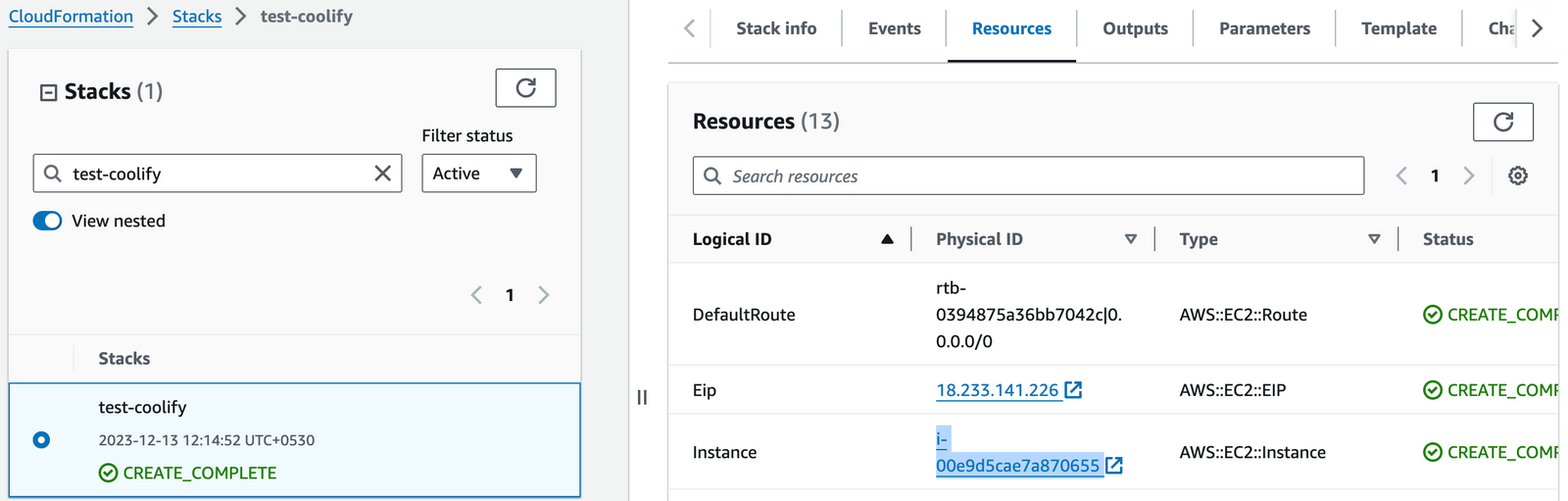
- Click the link labeled "Instance" in the "Resources" tab to access the EC2 instance, you will be directed to the coolify instance in EC2.
- Select the coolify instance by marking the checkbox and click "Stop instance" from the "Instance state" dropdown. You can restart the instance at your convenience by selecting "Start instance".

Remove Coolify
Delete the stack that has been created in the AWS Management Console under 'CloudFormation Stacks' by clicking the 'Delete' button.
API Documentation
For more information, refer to the Coolify API documentation.
Upgrades
When there is an upgrade, we will update the product with a newer version. You can check the product version in AWS Marketplace. If a newer version is available, you can remove the previous version and launch the product again using the newer version. Remember to backup the necessary server data before removing.
Troubleshoot
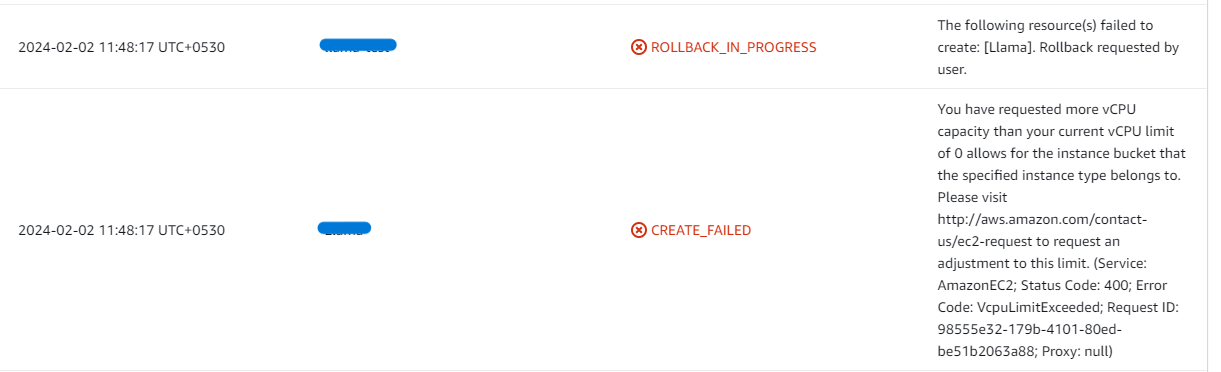
- If you face the following error, please follow https://meetrix.io/articles/how-to-increase-aws-quota/ blog to increase vCPU quota.
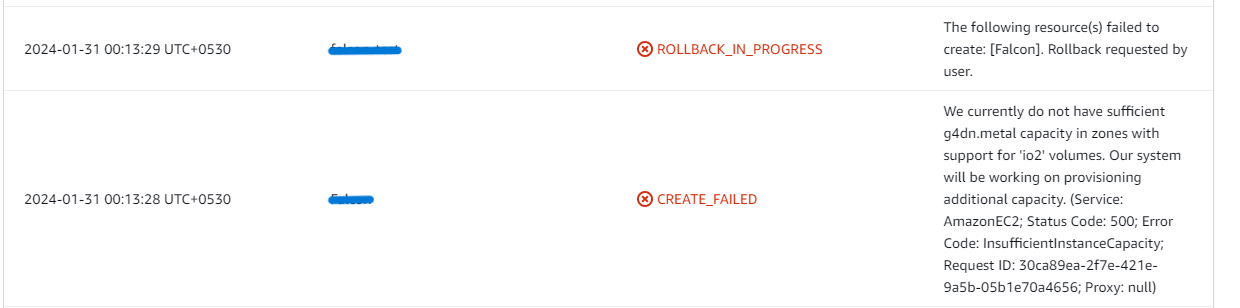
- If you face the following error (do not have sufficient <instance_type> capacity...) while creating the stack, try changing the region or try creating the stack at a later time.
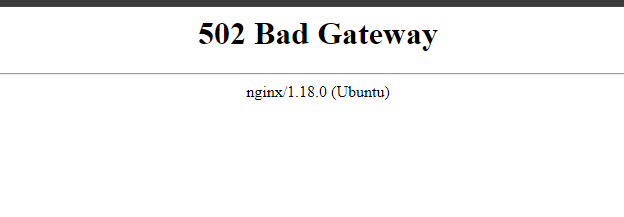
- If you face the below error, when you try to access the API dashboard, please wait 5-10 minutes and then try.
Conclusion
The Meetrix Coolify Developer Guide simplifies the integration of Coolify into your AWS environment with detailed, step-by-step instructions. Coolify offers a unique self-hostable platform that combines cloud-like convenience with the freedom to manage servers, applications, and databases on personal hardware via SSH. This approach provides a vendor lock-in-free solution for robust server management and application control. Whether optimizing operations or enhancing control, Coolify ensures flexibility and efficiency in your AWS setup.
Technical Support
Reach out to Meetrix Support (support@meetrix.io) for assistance with Coolify issues.
Frequently Asked Questions
What is Coolify?
Coolify is a self-hostable platform offering the convenience of cloud services while allowing users to manage servers, applications, and databases on their own hardware through a simple SSH connection, providing a vendor lock-in-free solution for personalized server management and control.
What are the prerequisites for installing Coolify on AWS with this guide?
You need basic knowledge of AWS services (EC2, CloudFormation), an active AWS account with appropriate permissions, and a sufficient vCPU limit.
How do I get technical support?
You can reach out to Meetrix Support at support@meetrix.io for assistance with Coolify issues.
How do I handle upgrades?
When a new version is available in the AWS Marketplace, you can remove the previous version and launch the product again using the newer version. Remember to backup the necessary server data before removing.
Ready to Launch Your Own Self-Hostable Platform?
Get started in minutes with our pre-configured AMI and take control of your application deployments.
Deploy Coolify from AWS Marketplace